Affiliate disclosure: This article contains affiliate links. If you purchase through these links, I may earn a commission at no additional cost to you. I have personally tested ElevenLabs V4, and this article includes my experience alongside information from ElevenLabs. Please listen to the sample and compare plans before buying.
AI narration becomes more useful when creators can shape how a sentence sounds. ElevenLabs V4 brings expressive speech, multiple speakers and inline audio direction into a workflow suitable for videos, storytelling and educational content.
I tested ElevenLabs V4 by generating a romantic conversation between two young characters sitting at a restaurant coffee table. Below, I explain the workflow, key settings and subscription options, with a sample you can listen to before deciding whether it fits your projects.
What Is ElevenLabs V4?
ElevenLabs calls the model “Eleven v4.” Its documentation describes improvements in voice accuracy, consistency, emotional delivery, audio tags and language coverage compared with v3.
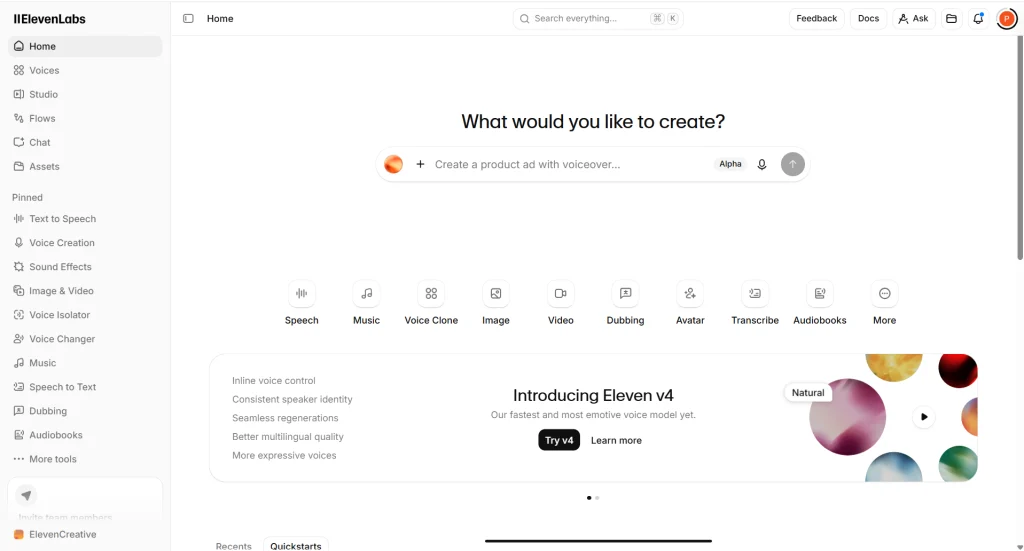
The logged-in homepage displays a V4 announcement highlighting inline voice control, consistent speaker identity, seamless regenerations, better multilingual quality and more expressive voices.
ElevenLabs V4 Features That Matter to Creators
Expressive Voice Control
Creators can insert instructions inside their scripts to influence delivery. Instead of rewriting every sentence to imply emotion, you can experiment with bracketed directions.
For example:
[warmly] I’m glad we finally found a quiet table. I’ve been looking forward to seeing you all day.
Better Audio Tag Following
ElevenLabs says V4 follows tag sequences more reliably than v3, including sound-related instructions. Tags can guide emotion, pauses and vocal actions, although individual results still vary.
Long-Form Consistency
ElevenLabs promotes context stitching to help maintain pacing and delivery across longer scripts, alongside improved speaker identity during regeneration.
Improved Multilingual Speech
The official V4 page lists support for more than ninety languages. This creates opportunities to adapt tutorials, stories and promotional content for different audiences.
Translate and review the script separately. Multilingual speech generation does not replace accurate translation, and important names or local expressions deserve a pronunciation check.
My ElevenLabs V4 Conversation Test
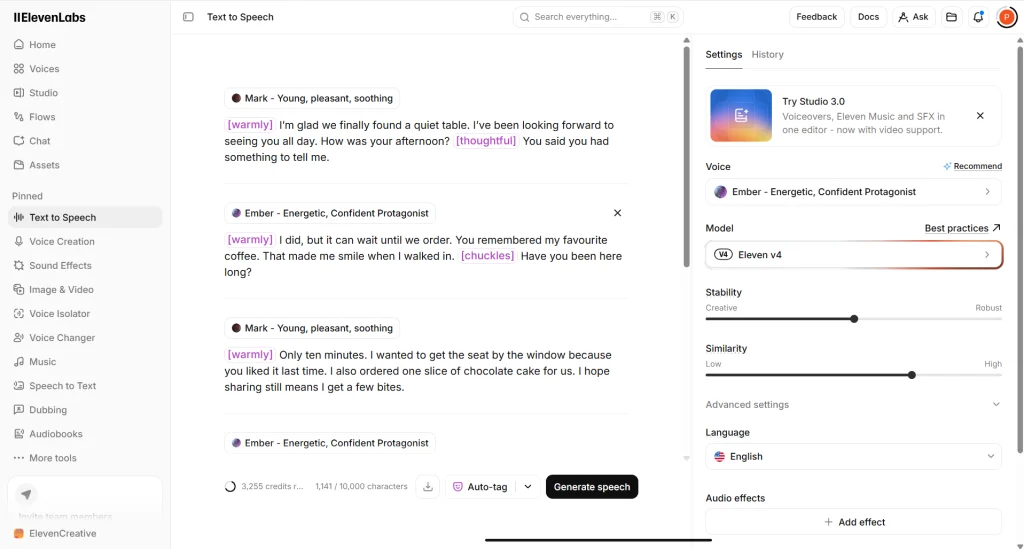
For my test, I created alternating dialogue with two voices. The editor screenshot shows “Mark – Young, pleasant, soothing” and “Ember – Energetic, Confident Protagonist” assigned to separate speaking blocks.
I used tags including [warmly], [thoughtful] and [chuckles]. The screenshot also shows the Eleven v4 model, English language selection, Auto-tag and the Generate speech button.
Listen for speaker changes, emotional delivery, pronunciation and volume consistency. During my testing, I noticed frequent increases and decreases in volume. That makes this a useful practical demonstration, rather than proof that every generation is ready to publish without editing.
This short English conversation does not establish how well the model performs on full audiobooks or across every supported language.
How to Use ElevenLabs V4: Step by Step
1. Log In
Visit ElevenLabs and sign in. On the homepage layout I tested, the V4 announcement appears toward the bottom of the visible page.
2. Click “Try v4”
Select the Try v4 button on the announcement. This opens the text-to-speech workspace. Confirm that the model selector displays Eleven v4.
3. Choose Your Characters
Select a voice for each speaker and assign dialogue to the appropriate blocks. Keep the same voice attached to each character throughout the scene.
4. Paste Your Script
Write short, natural sentences. Separate speaker turns clearly and remove headings or production notes that should not be spoken. Start with a brief exchange to avoid spending credits on an unsuitable voice.
5. Add Tags or Use Auto-tag
Insert bracketed directions manually, or use Auto-tag to add tags automatically. Review the suggestions before generating.
For steady narration, remove unnecessary switches between whispering, laughing and excited delivery. Automated suggestions are a starting point, not a requirement to keep every tag.
6. Adjust Settings and Effects
Set Stability and Similarity, choose the language where appropriate, and initially leave effects disabled. Generate a short sample, then change one setting at a time.
7. Generate, Review and Download
Click Generate speech. Listen before exporting, checking transitions, pacing and unwanted sounds. Download the result using the available export control, then import it into your video or audio editor.
Stability and Similarity Explained
Stability influences delivery consistency. The V4 screenshot labels its range Creative to Robust. Moving toward Robust is worth testing when you want steadier delivery; very high stability can reduce emotional variation.
Similarity controls how closely generation follows the selected voice’s identity. It is not a volume slider, and a higher value does not guarantee better results.
For this calm conversation, my suggested starting point is 70% Stability and 75% Similarity, where numeric controls are available. These are testing suggestions, not official optimal V4 settings. Compare a short sample at lower stability if the result sounds flat.
Neither setting replaces audio compression or loudness adjustment. If volume remains uneven, reduce delivery tags and apply gentle compression during editing.
Audio Effects: Filter, Noise, Space and Distance
The interface includes an Audio effects section. The four categories available in my workflow were Filter, Noise, Space and Distance.
The table explains their usual audio-production roles. Exact behaviour depends on the preset selected, so preview each effect rather than assuming every category works identically.
| Category | Typical purpose | Possible creative use |
|---|---|---|
| Filter | Changes the tonal character of audio | A stylized telephone or radio voice |
| Noise | Adds noise or texture, depending on the preset | A deliberately imperfect recording |
| Space | Simulates acoustic surroundings or reverberation | Making dialogue feel situated in a room |
| Distance | Changes the impression of proximity | A character speaking farther away |
For clear tutorials and the first conversation test, keep effects off. Later, subtle acoustic treatment may help fit dialogue into a scene.
ElevenLabs V4 Subscription Plans
These are the monthly ElevenCreative prices listed on the official pricing page when checked on October 1, 2026. Taxes are extra.
| Plan | Monthly price | Included monthly credits |
|---|---|---|
| Free | $0 | 10,000 |
| Starter | $6 | 30,000 |
| Creator | $22 | 121,000 |
| Pro | $99 | 600,000 |
| Scale | $299 | 1,800,000 |
| Business | $990 | 6,000,000 |
| Enterprise | Custom | Custom |
Creator currently advertises a $11 introductory first month. Starter includes a commercial license and Instant Voice Cloning; Creator adds Professional Voice Cloning. Credits are shared across products, and generation costs depend on usage.
Check the official pricing page for current allowances, annual billing and temporary V4 promotions. Avoid treating credit balances as guaranteed finished-video minutes.
How Creators Can Put V4 to Work
ElevenLabs V4 can support faceless YouTube narration, character conversations, educational role-play and product demonstrations. Freelancers can also use it to prototype voiceovers before finalizing a client script.
Build a repeatable workflow: approve the text, choose voices, test a short passage, generate the remaining sections and review the finished audio. This helps manage credits while preserving editorial control.
Is ElevenLabs V4 Worth Trying?
ElevenLabs V4 offers useful controls for creators who want more expressive narration and dialogue. My test also highlights why listening and editing remain essential, particularly when volume changes distract from the scene.
Start with a short sample and select a paid plan according to commercial-use needs and actual production volume.