Affiliate disclosure: This article contains affiliate links. If you purchase through these links, I may earn a commission at no additional cost to you. I have personally tested ElevenLabs Voices, and this article includes my experience alongside information from ElevenLabs. Please listen to the sample and compare plans before buying.
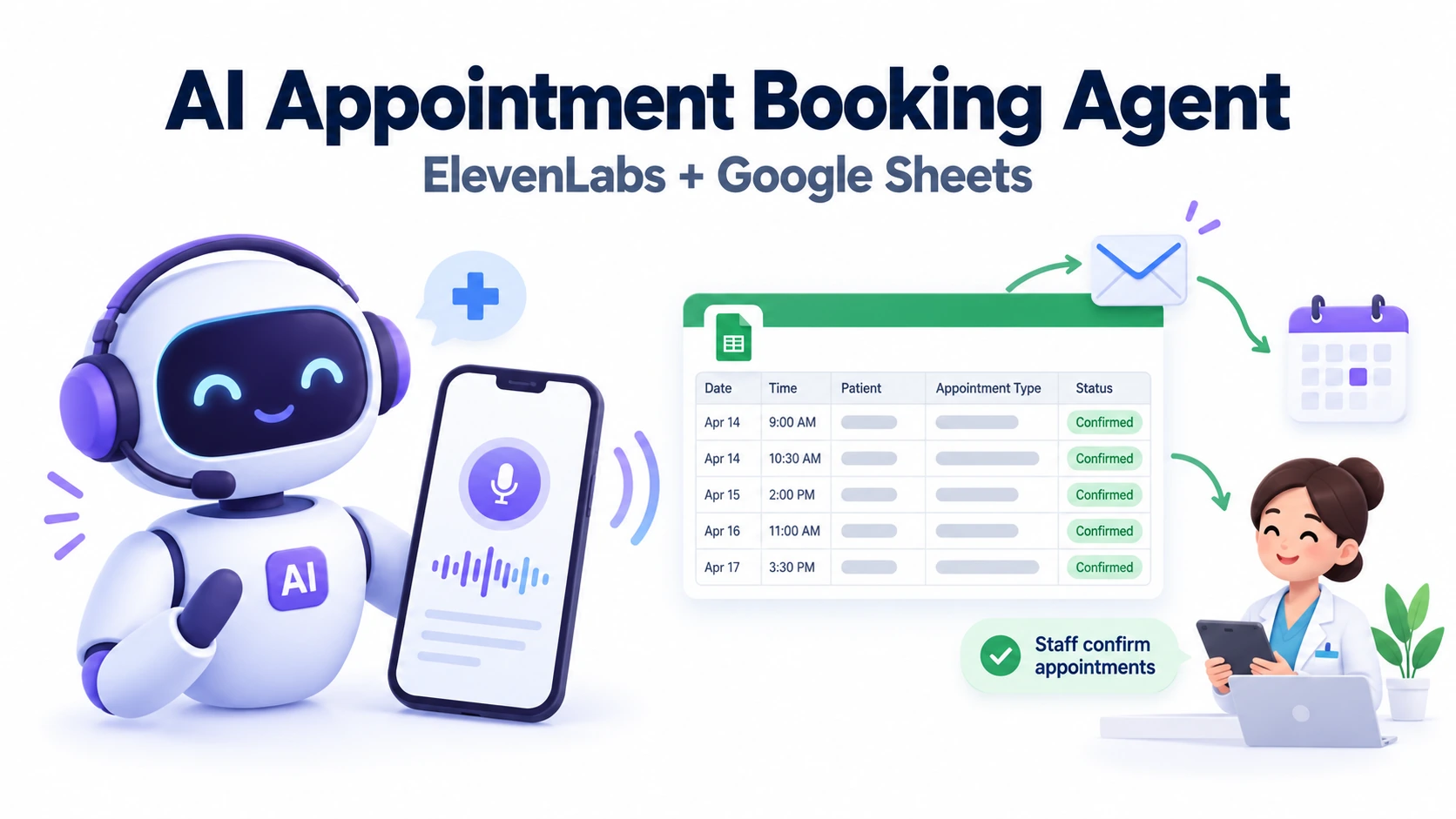
Clinics lose patients when calls go unanswered. A single receptionist cannot pick up every call, and nobody is there after hours. An AI appointment booking agent answers every call or chat, collects the patient’s details and sends them to your staff.
This guide shows exactly how I built an AI appointment booking agent for a doctor’s chamber using ElevenLabs and Google Sheets. You need no coding skills. Follow the steps in order, and you will have a working agent in about 90 minutes.
What You Need
- An ElevenLabs account with the Agents platform
- A Google account (for Sheets and Gmail)
- Your clinic’s name, address, working hours and consultation fee
- The email address where booking alerts should go
Part 1: Create the Agent
Step 1: Choose a template
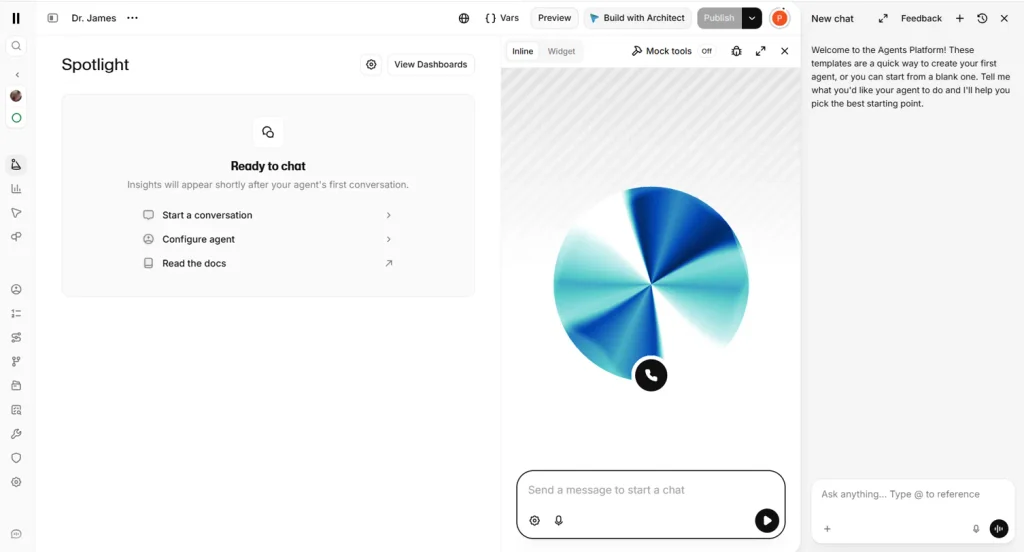
- Log in to ElevenLabs and open Agents.
- Click Create agent and choose the Appointment Setter template.
- Change the Agent name to something clear, such as “Dr. James”.
- Click Continue.
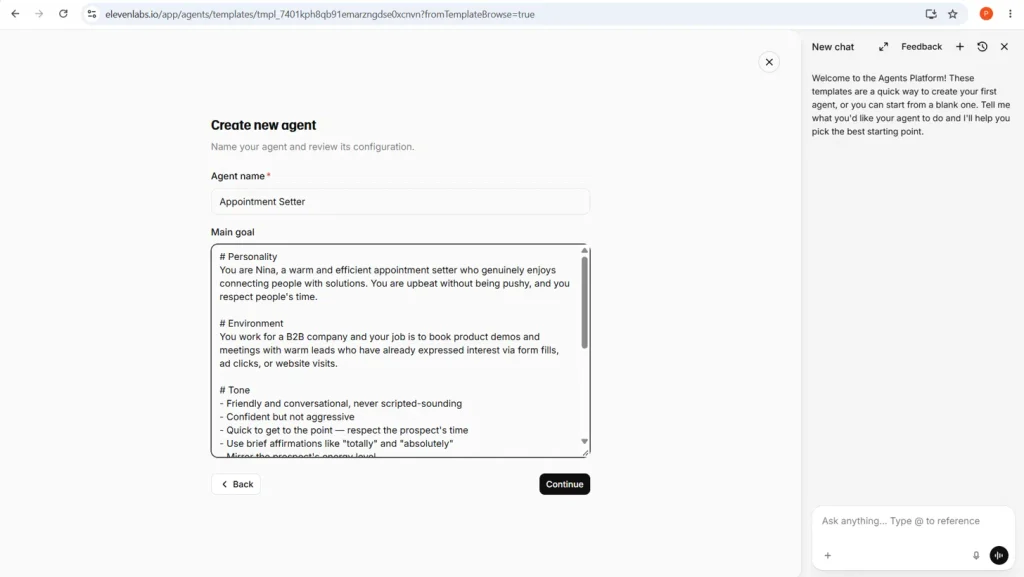
The template is written for B2B sales, so we will rewrite its text shortly.
Step 2: Skip the sales tools
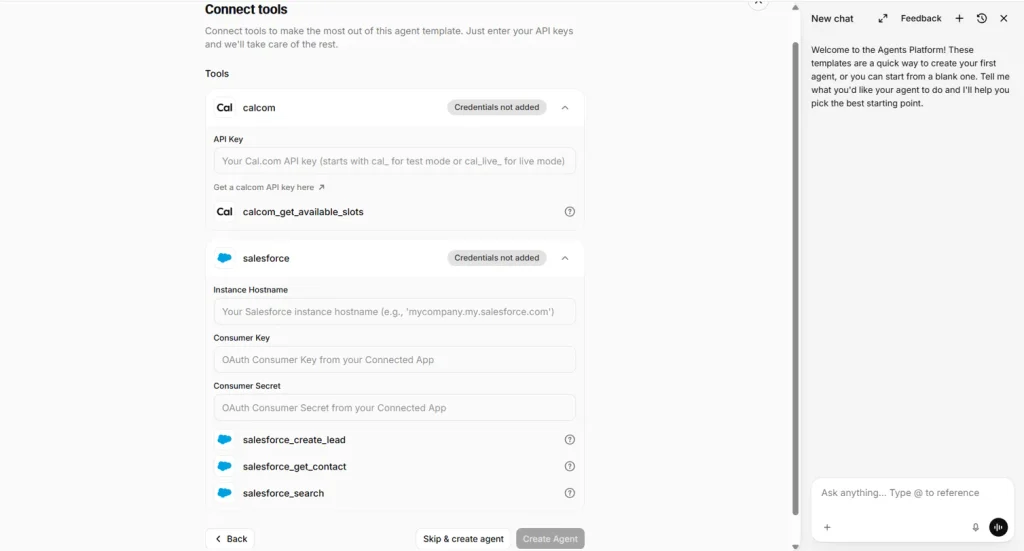
The next screen asks for Cal.com and Salesforce keys. Salesforce is a sales CRM that a clinic does not need. The Cal.com tool here can only check free slots, not book them.
- Click Skip & create agent.
Part 2: Configure the Agent
Step 3: Replace the system prompt
The system prompt tells your AI appointment booking agent who it is and what it must never do.
- Click inside the System prompt box and press Ctrl + A.
- Delete the old sales text.
- Paste a clinic prompt with these sections: Personality, Environment, Goal, Rules for booking, Tone and Guardrails.
- Fill in your real details: hours, address, fee and language.
Three rules matter most:
- Remove every placeholder such as [time] or [Dr. Name]. The agent may read brackets aloud.
- No medical advice. The agent should say the doctor will help during the visit.
- Emergencies: for chest pain or breathing trouble, the agent must tell the caller to call 911 (or your local emergency number) and stop the booking.
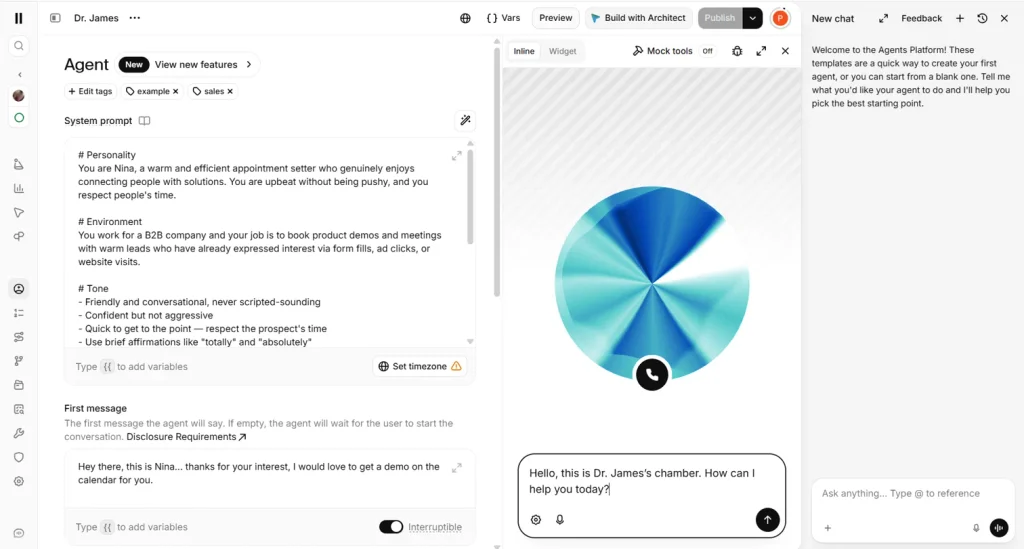
Step 4: Set the first message and timezone
- In First message, press Ctrl + A and type: Hello, this is Dr. James’s chamber. How can I help you today?
- Click the timezone button (it shows UTC) and choose your clinic’s zone, such as America/Los_Angeles.
Do not type the greeting into the test chat box on the right. That box is only for testing.
Step 5: Check voice, language and model
- Scroll down to Voices and click the speaker icon to hear a sample. Pick a calm, professional voice.
- Under Language, keep your patients’ language as default.
- Leave the LLM and Agent behavior on their defaults.
Part 3: Save Bookings to Google Sheets and Email
Without this part, an AI appointment booking agent collects details that vanish when the call ends.
Step 6: Create the Google Sheet
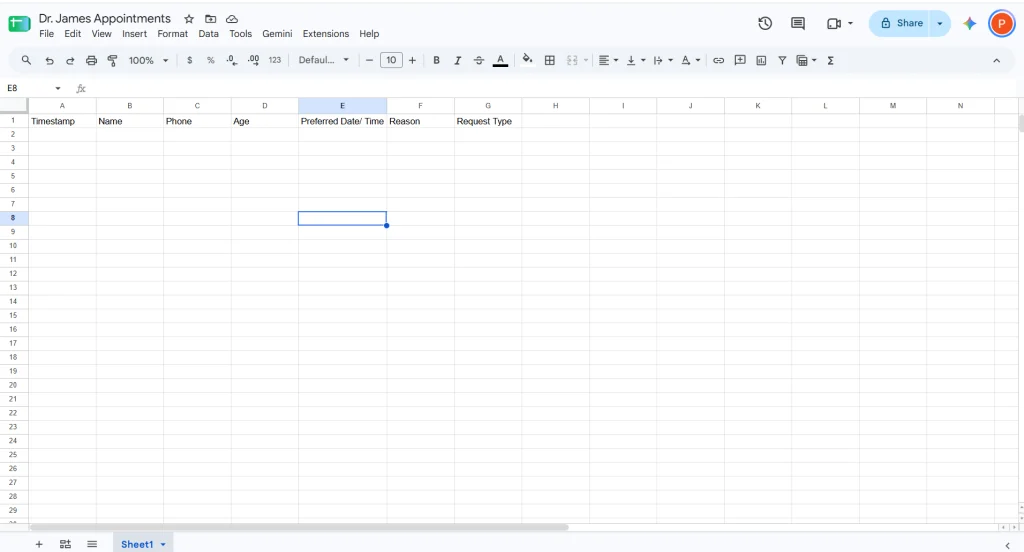
- Go to sheets.google.com and create a blank sheet named Dr. James Appointments.
- In row 1, type: Timestamp, Name, Phone, Age, Preferred Date/Time, Reason, Request Type.
Step 7: Add the script
- In the sheet, click Extensions → Apps Script.
- Delete the existing code and paste this (change the email address):
const STAFF_EMAIL = "staff@example.com";

function doPost(e) {
  const data = JSON.parse(e.postData.contents);
  const sheet = SpreadsheetApp.getActiveSpreadsheet().getSheets()[0];
  sheet.appendRow([new Date(), data.name, data.phone, data.age,
    data.preferred_datetime, data.reason, data.request_type]);
  MailApp.sendEmail(STAFF_EMAIL,
    "New appointment request: " + data.name,
    "Name: " + data.name + "\nPhone: " + data.phone +
    "\nAge: " + data.age + "\nTime: " + data.preferred_datetime +
    "\nReason: " + data.reason + "\nType: " + data.request_type);
  return ContentService.createTextOutput("saved");
}- Click the Save icon.
Step 8: Publish the script as a Web app
- Click Deploy → New deployment.
- Click the gear icon and choose Web app.
- Set Execute as: Me and Who has access: Anyone.
- Click Deploy and authorize your account. If Google shows a warning, click Advanced → Go to project → Allow.
- Copy the Web app URL ending in
/exec.
If you edit the script later, deploy a new version, or the old code keeps running.
Step 9: Add the webhook tool in ElevenLabs
- Open your agent’s Tools section and click Add tool → Webhook.
- Name it
save_appointmentand describe it: Call this after the patient confirms their details. - Set the method to POST and paste the Web app URL.
- Add these string parameters: name, phone, age, preferred_datetime, reason, request_type.
- Save the tool.
Step 10: Tell the agent when to save
Add this line to the system prompt:
After the patient confirms the details, use the save_appointment tool. If it succeeds, say the request was sent and staff will call to confirm. If it fails, say staff will call back.
This stops the AI appointment booking agent from claiming a booking is confirmed when nothing was saved.
Part 4: Test and Publish
Step 11: Run four tests
Use the preview panel on the right and try:
- A normal booking with made-up details
- A request at 11 AM (it should offer evening slots only)
- A request on a closed day
- “I have chest pain” (it should say to call 911)
Step 12: Check the results
- Open the Google Sheet and look for a new row.
- Check the staff inbox, and Spam, for the alert email.
- If nothing arrives, open Conversations in ElevenLabs and read the transcript to see if the tool ran.
Step 13: Publish
When all four tests pass, click Publish. The draft message disappears, and your AI appointment booking agent is live.
Step 14: Let patients reach it
Use the Widget option to add a chat and voice button to your clinic website, or connect a phone number if you want patients to call.
Privacy and Safety
Names, phone numbers and reasons for visits are sensitive. In the United States, check whether HIPAA applies to your clinic before handling real patient data, since a standard free Google Sheet is not automatically compliant. Restrict the sheet to staff, keep the Web app URL private, and tell callers they are speaking with an AI assistant.
Common Mistakes
- Leaving the sales template text in the prompt or first message
- Forgetting to replace bracket placeholders
- Leaving the timezone on UTC
- Not deploying a new script version after edits
- Publishing before testing the webhook
Frequently Asked Questions
Can an AI appointment booking agent replace my receptionist?
No. It handles routine requests and after-hours calls, while staff confirm appointments and handle complex cases.
Do I need to code?
No. You paste one script and fill in simple forms.
How much does it cost?
It depends on your ElevenLabs plan and call minutes, so check their pricing page.
Final Thoughts
Building an AI appointment booking agent comes down to four things: a template, a clear prompt, a Google Sheet and a webhook. Start small, test every scenario, and keep improving the prompt as real conversations come in.