Affiliate disclosure: This article contains affiliate links. If you purchase through these links, I may earn a commission at no additional cost to you. I have personally tested ElevenLabs, and this article includes my experience alongside information from ElevenLabs. Please listen to the sample and compare plans before buying.
Creating the perfect background music for a YouTube video can be surprisingly difficult. You may spend hours searching through music libraries, downloading tracks, adjusting audio levels, and trying to match the music to your video’s mood.
But what if artificial intelligence could watch your video and create a soundtrack specifically for it?
That’s what ElevenLabs Instant Soundtracks aims to do.
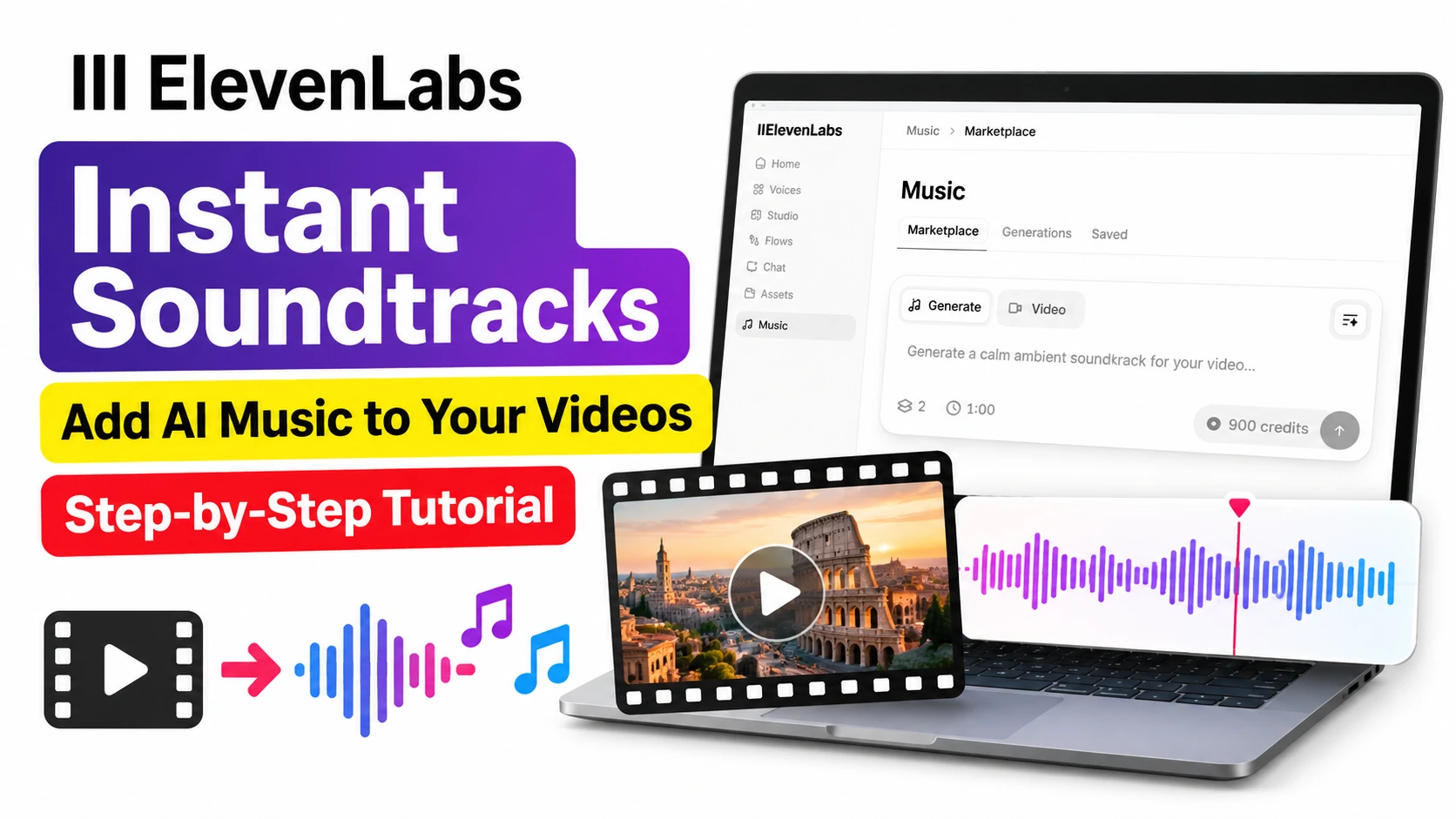
With ElevenLabs Instant Soundtracks, creators can upload a video, describe the music they want, and generate an original soundtrack that complements their content.
I recently tested this feature using a short documentary-style video about the history of Rome. Instead of searching for royalty-free background music, I uploaded my video directly to ElevenLabs and used AI to create a cinematic instrumental soundtrack.
In this hands-on tutorial, I’ll explain how to use ElevenLabs Instant Soundtracks, share my actual workflow with screenshots, and show how you can use it for YouTube videos, documentaries, travel videos, and other creative projects.
What Is ElevenLabs Instant Soundtracks?
ElevenLabs Instant Soundtracks is an AI-powered video-to-audio feature that helps creators generate background music for existing videos.
Unlike traditional music libraries, where you search for a suitable track, this feature lets you upload your video and provide instructions describing the music you want.
The AI then generates a soundtrack based on your video and your creative direction.
For example, imagine creating a travel documentary about Rome. You might want gentle piano music during the introduction, dramatic orchestral arrangements when showing ancient monuments, and a peaceful melody toward the ending.
Instead of manually finding and combining different tracks, you can describe these musical changes in your prompt.
ElevenLabs also provides a music-generation interface where users can create standalone instrumental tracks without uploading a video.
Key Features
- Video-based music generation: Upload a video and request a soundtrack.
- Text-to-music generation: Create music using a written prompt.
- Music duration selection: Choose from available duration options.
- Musical customization: Specify instruments, tempo, mood, and style.
- Fine-tuning: Request adjustments to musical sections.
- Timeline preview: Review the soundtrack alongside your video.
- Download option: Export the generated result using the available controls.
These capabilities make ElevenLabs Instant Soundtracks particularly interesting for creators who want to reduce manual audio editing.
How to Use ElevenLabs Instant Soundtracks: Step-by-Step Tutorial
Let’s walk through the actual process I followed while creating music for my Rome history video.
Step 1: Log In to ElevenLabs
First, visit the official ElevenLabs website and sign in to your account.
After logging in, you will arrive at the ElevenLabs dashboard.
In my test, I accessed Instant Soundtracks through the notification icon located in the upper-right corner.
Click the notification icon and look for the announcement titled Introducing Instant Soundtracks.
Select the announcement to access the feature.
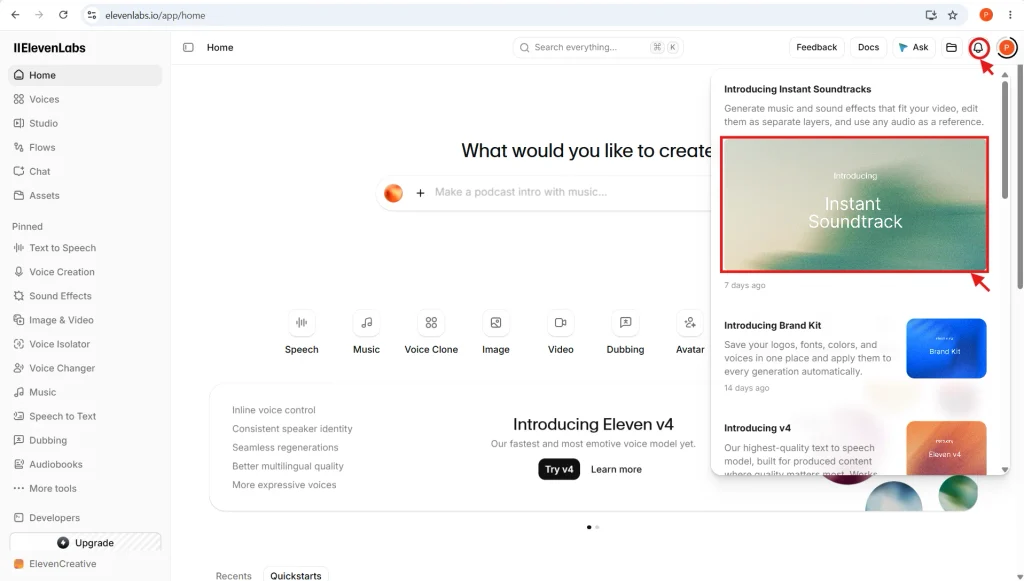
Image caption: Accessing ElevenLabs Instant Soundtracks through the notification panel.
Depending on interface updates, you may also be able to access the relevant music-generation tools through the Music section in the sidebar.
Step 2: Explore the Music Generation Interface
After opening the music workspace, you will find a prompt-based generation interface.
This interface allows you to generate music directly from text instructions.
You can describe the genre, instruments, mood, and atmosphere you want.
For example, if you are creating a technology tutorial for YouTube, you might enter:
Create a modern, calm electronic instrumental soundtrack suitable for a professional AI software tutorial. Use soft synthesizers, subtle piano, and gentle rhythmic elements. Keep the music unobtrusive so viewers can clearly hear the narration.
You can also explore music categories such as Cinematic, Corporate, Education, Podcasts, and Lifestyle to get inspiration.
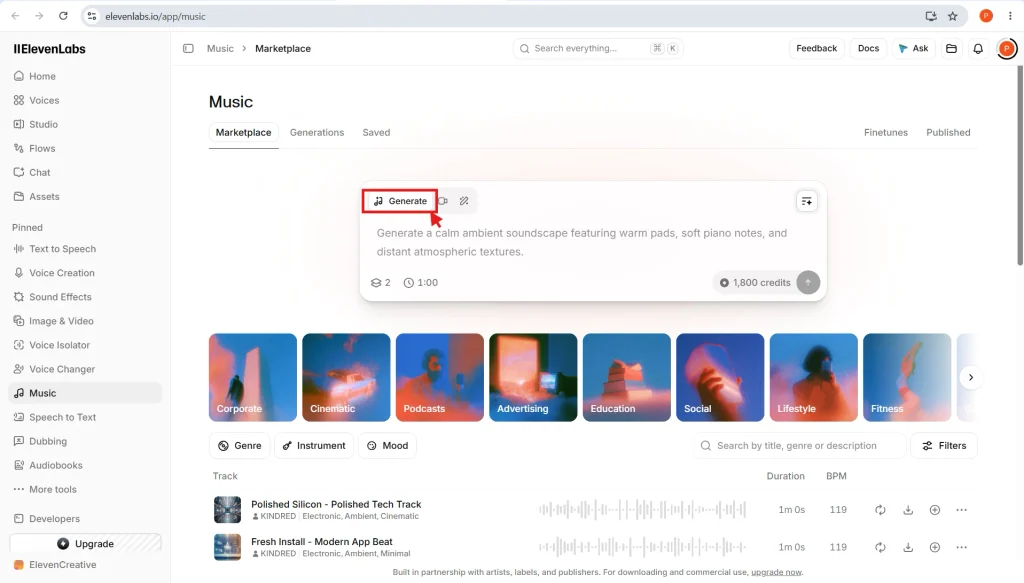
Image caption: Creating background music from a text prompt in ElevenLabs.
The quality of your prompt matters. Rather than entering something generic like “create background music,” explain what the video is about and how you want the audience to feel.
Step 3: Select the Music Duration
One useful feature of the music-generation interface is its duration selector.
In my test, the available options included:
- Auto
- 30 seconds
- 1 minute
- 2 minutes
- 4 minutes
- 6 minutes
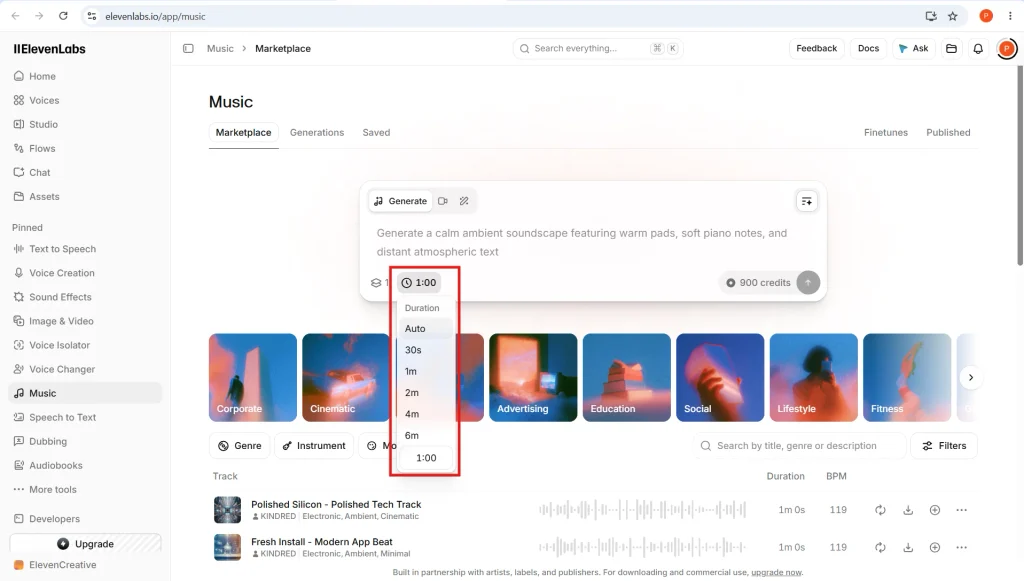
Image caption: Selecting the desired music duration before generating a track.
For short social media videos, a 30-second or one-minute track may be sufficient.
For longer videos, you may need a longer track or a different arrangement.
The six-minute option was the longest fixed duration shown in my standalone music-generation interface. Available limits may vary depending on the product mode and account.
Tip: Choose the duration according to your video’s actual requirements instead of automatically selecting the longest available option.
Step 4: Upload Your Video to Generate a Soundtrack
Now we come to the most interesting part of ElevenLabs Instant Soundtracks.
Instead of creating standalone music, you can upload a video and ask ElevenLabs to generate music for it.
In the Music workspace, select the Video option beside Generate.
You will see an upload area with instructions to upload a video for background music generation.
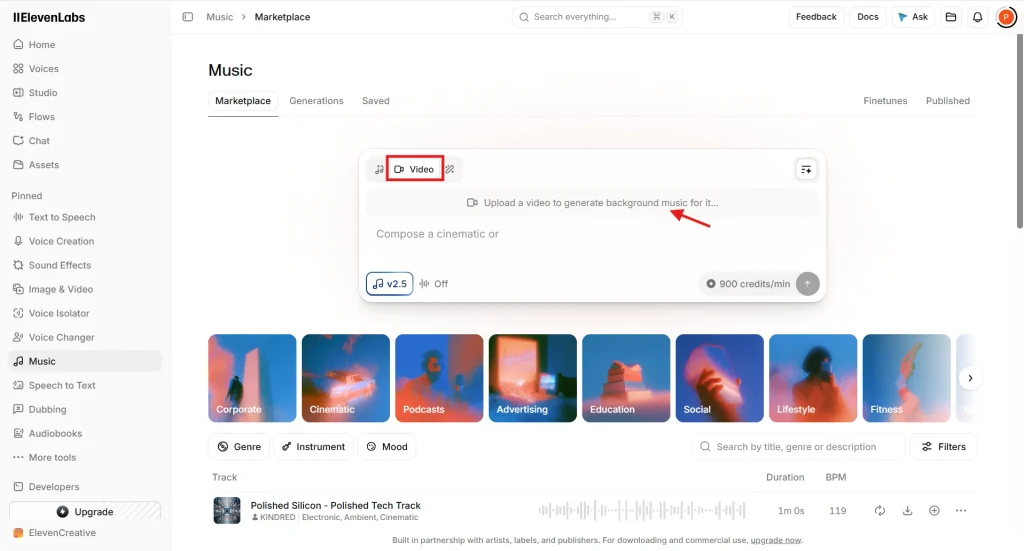
Image caption: Switching to Video mode to generate a soundtrack for an existing video.
Click the upload area and select the video from your computer.
For my experiment, I uploaded a short documentary-style video about Rome.
The video contained historical architecture, ancient monuments, streets, and panoramic views of the city.
My goal was to create music that supported the historical atmosphere without overwhelming the visuals.
Why Video-Based Music Generation Matters
When creating documentaries or travel videos, the music should complement the visual story.
A historical documentary may benefit from orchestral instruments, while an AI software tutorial may work better with light electronic music.
By uploading the actual video, you provide the system with additional context rather than relying entirely on a text description.
However, you should still preview the result carefully. AI-generated music may not always match every scene transition perfectly.
Step 5: Write a Detailed Music Prompt
After uploading my Rome video, I entered a custom prompt describing the musical atmosphere I wanted.
Here is the main prompt used in my experiment:
Create a cinematic instrumental soundtrack for this Rome history video. Capture the grandeur of ancient Rome, the charm of its streets, and the warmth of Italian culture.
Use gentle strings, soft piano, subtle classical guitar, and light orchestral percussion.
Begin with a calm, inviting introduction, gradually build an adventurous mood during impressive landmarks and sweeping views, and finish with a warm, memorable ending.
This prompt includes three important elements.
1. The video’s subject
I clearly identified the content as a Rome history video.
2. The musical instruments
I specified strings, piano, classical guitar, and orchestral percussion.
3. The emotional progression
I asked the soundtrack to begin calmly, become more adventurous, and end warmly.
These instructions help communicate the intended musical journey.
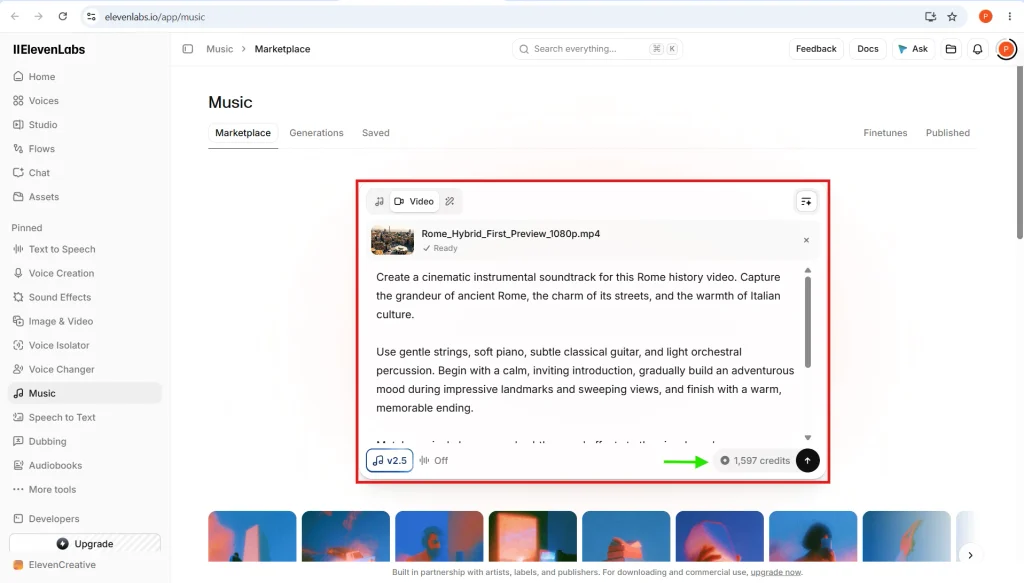
Image caption: My actual Rome history video uploaded to ElevenLabs Instant Soundtracks with a customized music prompt.
A Simple Prompt Formula for Creators
You can adapt this structure for almost any type of video:
Video subject + Music genre + Instruments + Mood + Musical progression + Ending style
For example, a technology tutorial might use:
Generate a clean, modern electronic soundtrack for an educational YouTube video about artificial intelligence. Use soft synthesizers, light piano, and minimal percussion. Keep the opening engaging, maintain a calm background during explanations, and finish with an uplifting melody. Avoid distracting or aggressive musical elements.
This approach is more useful than requesting music without explaining its purpose.
Step 6: Generate and Review the Soundtrack
After uploading the video and entering the prompt, ElevenLabs displayed the estimated credit requirement.
In my Rome test, the generation interface showed 1,597 credits for the submitted request.
This is an example from my actual test, not a fixed price for all videos.
The number of credits may depend on the video duration, selected features, and the platform’s current pricing structure.
Once the generation is complete, the project interface provides a video preview and an audio timeline.
My generated Rome soundtrack contained multiple named musical sections, including:
- Ancient Dawn
- Stone and Streets
- Roman Forum
- Everyday Rome
- Twilight Over the Tiber
These sections made it easier to understand the musical structure of the generated soundtrack.
The preview displayed a duration of approximately 1 minute and 46 seconds.
I could review the music while watching the corresponding video timeline.
Step 7: Fine-Tune the Generated Music
Another useful capability is the option to request changes after the initial generation.
For example, you may like most of the soundtrack but want a softer ending.
In my Rome project, I used the following fine-tuning instruction:
Add soft instrumental outro with gentle guitar melody and a fading string section.
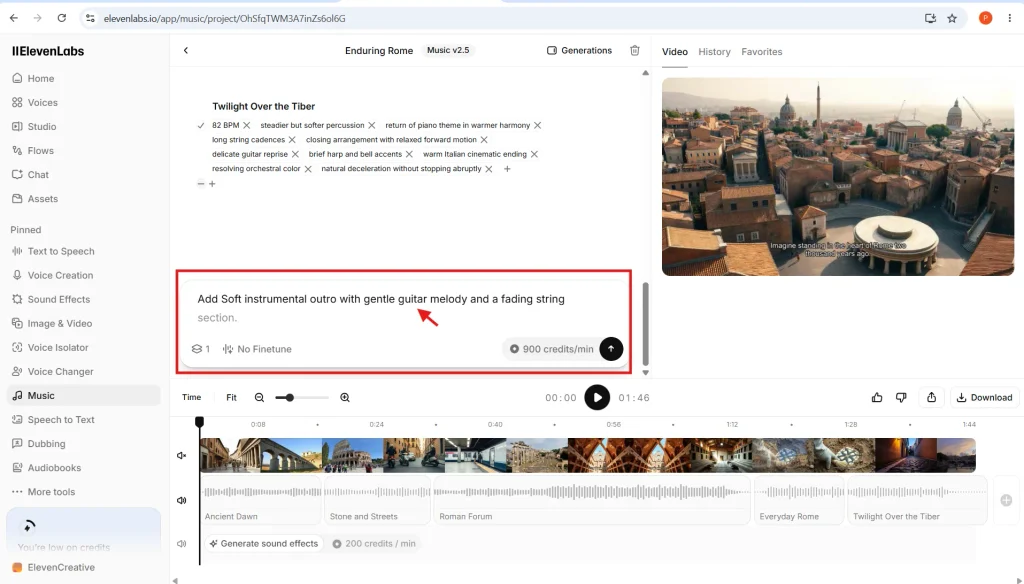
Image caption: Fine-tuning the generated Rome soundtrack using additional musical instructions.
The interface also displayed musical descriptors such as tempo, instrument choices, and arrangement details.
Fine-tuning can be useful when the original soundtrack does not completely match your intended atmosphere.
For example, you might request softer percussion, a warmer piano melody, or a more cinematic ending.
Keep in mind that additional generation or modification requests may consume credits.
My Real-World Test: Adding AI Music to a Rome History Video
To understand whether ElevenLabs Instant Soundtracks could help with my video production workflow, I tested it using a documentary-style Rome video.
The original video included different historical locations, architectural scenes, and city views.
I wanted music that felt cinematic and historically inspired.
After uploading the video, I requested an arrangement featuring soft piano, strings, classical guitar, and light orchestral percussion.
The resulting project provided a structured soundtrack that I could preview against the video.
What impressed me most was the ability to generate music for an existing video rather than selecting an unrelated stock music track.
The project also gave me an opportunity to request additional musical adjustments through text prompts.
That said, this was one practical test, not a controlled comparison against professional composers or competing AI music generators.
Watch My Rome Video With AI-Generated Music
This is the Rome history video I used to test ElevenLabs Instant Soundtracks. Listen to how the music complements the historical visuals and changes in atmosphere.
For the best demonstration, I recommend embedding the actual video rather than only an audio file. This allows visitors to evaluate the music together with the visuals.
How ElevenLabs Instant Soundtracks Helps YouTube Creators
For creators who regularly produce videos, soundtrack selection can become a time-consuming part of the workflow.
ElevenLabs Instant Soundtracks offers several potential benefits.
1. Faster Background Music Creation
Instead of browsing multiple music libraries, you can describe the music you need and generate a candidate soundtrack.
2. More Creative Control
You can request particular instruments, moods, and musical styles.
This is especially helpful when creating documentaries, travel videos, educational content, or cinematic storytelling.
3. Music Designed Around Your Video
Video-based generation provides the system with visual context.
This may help produce a more appropriate soundtrack than choosing a generic music track.
4. Reduced Manual Audio Work
Creators who do not have experience with professional audio software may find prompt-based music generation easier than composing and arranging music manually.
However, you may still need to adjust the music volume when combining it with spoken narration.
5. Useful for Different Content Categories
Potential applications include YouTube documentaries, travel vlogs, promotional videos, educational tutorials, short films, and social media content.
For AI tool tutorials, I recommend choosing subtle instrumental music that does not compete with the narration.
ElevenLabs Instant Soundtracks Pricing and Credits
ElevenLabs uses a credit-based system for its generative tools.
In the interface I tested, standalone music generation displayed a rate of 900 credits per minute for one configuration.
Another configuration displayed 1,800 credits for a one-minute generation.
My Rome video soundtrack request showed an estimated cost of 1,597 credits.
These are interface observations from my test, not a complete or permanent pricing schedule.
Before generating music, check the credit estimate shown in your account.
For current subscription details, visit the official ElevenLabs pricing page.
Also review the commercial usage rights attached to your plan before publishing generated music in monetized YouTube videos or client projects.
Tips for Getting Better Results
Based on the workflow, here are a few practical recommendations.
Use descriptive prompts. Mention the video’s subject, instruments, mood, and intended progression.
Avoid overly complicated instructions. A focused prompt is often easier to evaluate and refine.
Consider your narration. Background music should support the spoken content rather than overpower it.
Preview the entire result. Check whether the music fits the opening, middle, and ending of the video.
Monitor credit usage. Review the displayed cost before submitting generation or fine-tuning requests.
Test with a short video first. A one- or two-minute experiment can help you understand the workflow before processing longer projects.
Frequently Asked Questions
Is ElevenLabs Instant Soundtracks suitable for YouTube videos?
Yes. It can be useful for generating background music for YouTube tutorials, documentaries, travel videos, and other content. Always verify the applicable commercial licensing terms.
Can ElevenLabs generate music directly from a video?
Yes. In the tested interface, the Video mode allowed me to upload a Rome history video and request a soundtrack using a text prompt.
Can I generate music without uploading a video?
Yes. The standalone Generate mode supports text-prompt music creation.
Can I change the music after generation?
The tested project interface supported additional musical instructions for fine-tuning. Available editing controls may vary.
Does ElevenLabs Instant Soundtracks replace video editing software?
Not completely. It helps generate and refine music, but you may still need a video editor for narration mixing, visual editing, subtitles, and final publishing.
Is ElevenLabs Instant Soundtracks free?
Access and usage depend on the current ElevenLabs plan and credit allowance. Check your account and the official pricing page before generating music.
Final Verdict: Is ElevenLabs Instant Soundtracks Worth Trying?
After testing ElevenLabs Instant Soundtracks with my Rome history video, I see it as a promising tool for creators who want to simplify background music production.
The most useful part of the workflow is the ability to upload a video, describe the desired musical atmosphere, and generate a soundtrack without manually composing music.
The option to request additional changes also provides flexibility.
For creators producing travel videos, documentaries, educational content, and YouTube tutorials, ElevenLabs Instant Soundtracks is worth testing.
However, the final soundtrack still needs human review, particularly when narration clarity, scene timing, and commercial licensing are important.
If you regularly create videos and want to reduce the time spent searching for background music, this feature could become a useful addition to your production workflow.
Try ElevenLabs through my affiliate link
Watch the full step-by-step tutorial on our MiviCAI YouTube channel.