Creating professional videos with AI tools is becoming easier. You can write scripts with AI, generate voiceovers using ElevenLabs, create visuals, and produce videos without a large production team.
However, publishing those videos across multiple social media platforms remains a time-consuming task.
Imagine uploading the same video separately to Facebook, Instagram, TikTok, YouTube Shorts, and other platforms. If you publish content regularly, the process quickly becomes repetitive.
This is where Repostit.io can help.
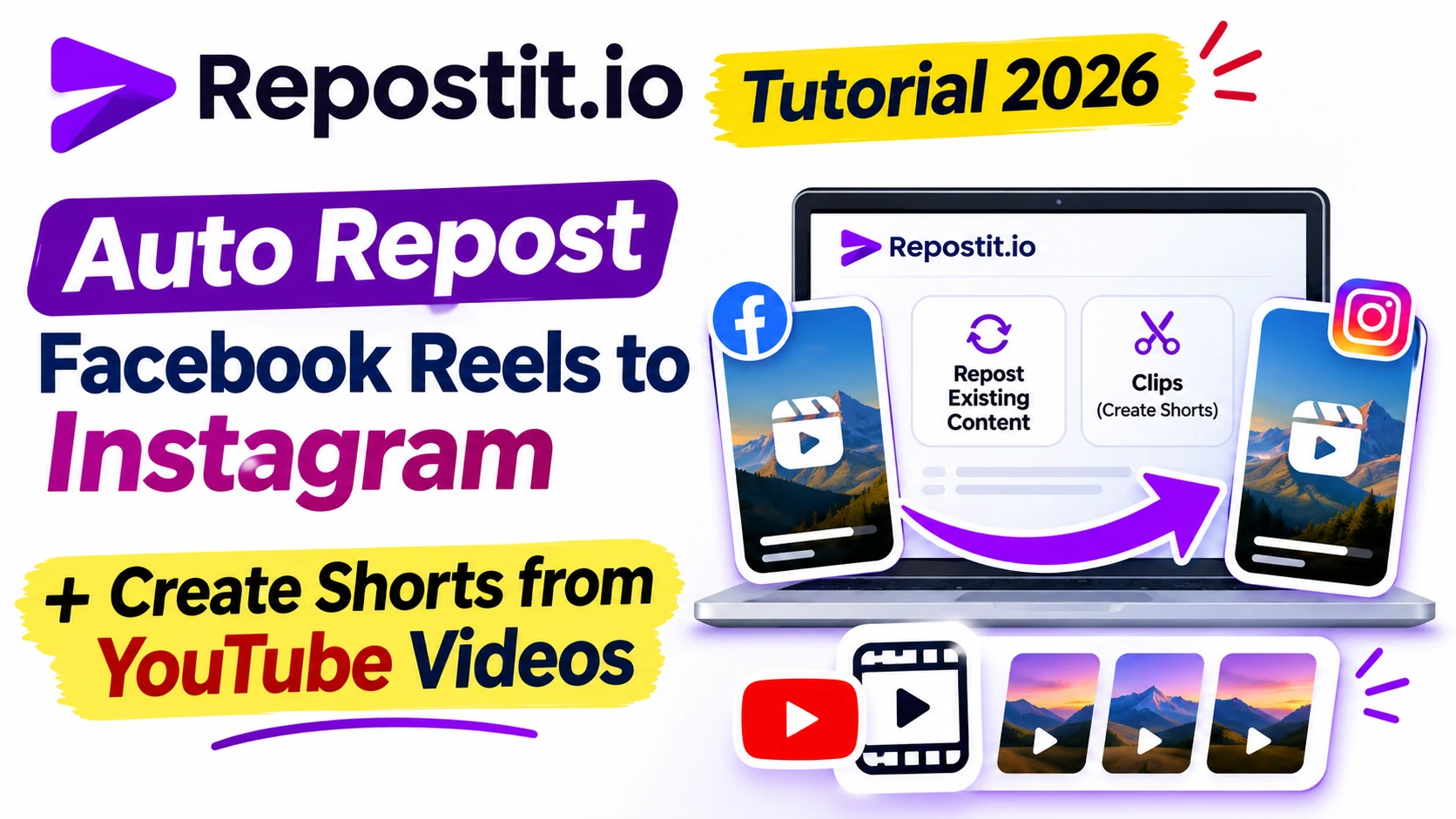
In this Repostit.io tutorial, I’ll demonstrate how to connect Facebook and Instagram, configure an automated reposting workflow, schedule existing videos, and generate vertical short clips from longer YouTube videos.
I’ll also share the results of my hands-on experiment, where Repostit.io generated seven short clips from a single YouTube video.
Editorial Disclosure
The Repostit team contacted MiviCAI and suggested that we consider reviewing Repostit Clips for our AI Video category. No payment, positive rating, specific placement, or backlink was requested. Following their suggestion, we independently tested Repostit.io’s Facebook-to-Instagram automation workflow and AI-powered Clips feature. This tutorial reflects our own hands-on experience and independent assessment.
What Is Repostit.io?
Repostit.io is a social media automation and video repurposing platform designed to help creators distribute content across multiple channels.
Instead of manually uploading the same content repeatedly, you can connect supported accounts and configure workflows that publish videos to selected destinations.
The platform offers several useful features:
- Automatic reposting: Republish eligible content between connected social media accounts.
- Future and existing workflows: Automate newly published content or reuse older videos.
- Publishing schedules: Control when your existing content is republished.
- AI-powered Clips: Extract short vertical videos from longer source videos.
- Watermark removal: Remove supported TikTok watermarks during reposting.
- Cloud backup: Send supported videos to Google Drive or Dropbox.
- Manual approval: Review content before enabling automatic publishing.
For YouTubers, freelancers, bloggers, and social media managers, these features can reduce repetitive distribution work.
Which Platforms Does Repostit.io Support?
According to Repostit.io’s official documentation, its publishing destinations include:
| Platform | Supported publishing format |
|---|---|
| Reels and Stories | |
| Reels, videos, and Page Stories | |
| YouTube | Shorts |
| TikTok | Videos and photo posts |
| Video Pins | |
| X | Video posts |
| Threads | Video posts |
| Video posts |
Google Drive and Dropbox are also supported as backup destinations.
Important: Not every destination can also function as a source.
For example, Facebook and Instagram can be sources, while YouTube as a reposting-workflow source is listed as coming soon.
However, the separate Repostit Clips feature already supports YouTube video links.
This distinction is important when planning your automation.
Repostit.io Tutorial: Automatically Repost Facebook Reels to Instagram
Let’s begin with the first workflow I explored: reposting existing Facebook Reels to Instagram.
Step 1: Sign Up for Repostit.io
Visit: https://repostit.io/
Create an account or sign in.
After logging in, you’ll see the Repostit.io dashboard.
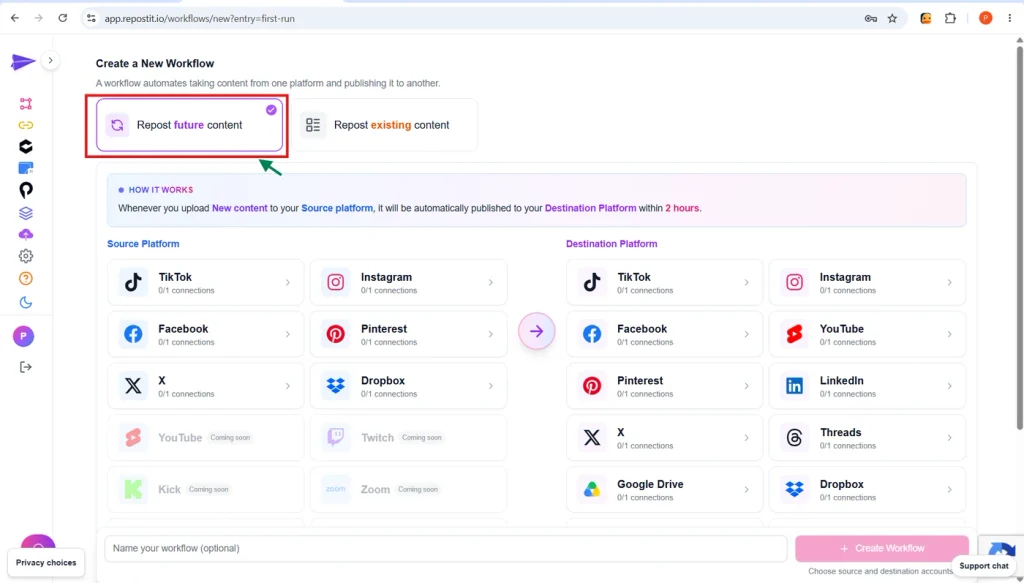
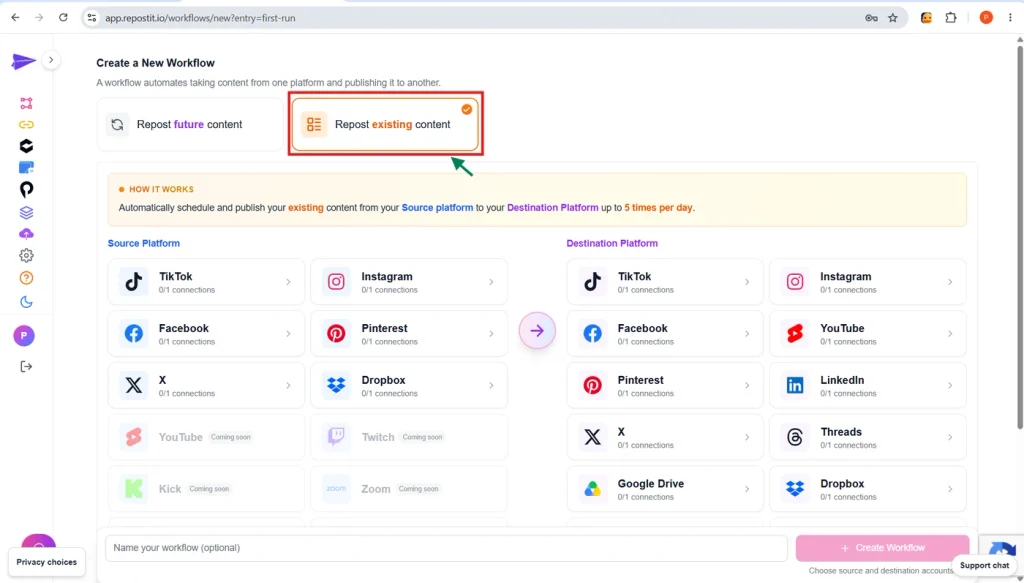
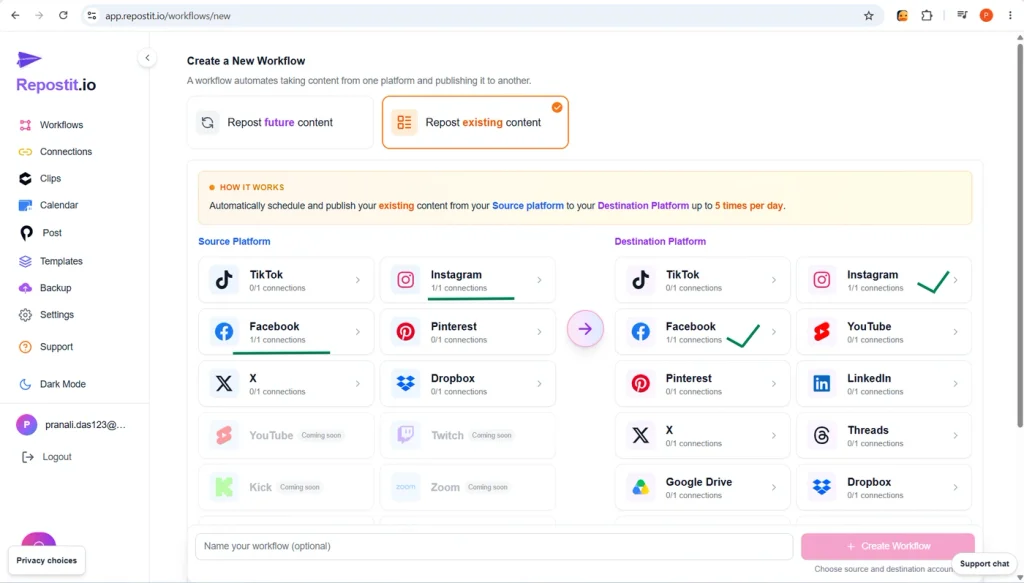
Open the workflow creation interface, where you’ll find two options:
Repost future content: This workflow monitors eligible new posts from a connected source and republishes them to your chosen destinations.
Repost existing content: This workflow processes content that you’ve already published.
For this tutorial, I selected Repost existing content.
This option is useful if you have older Facebook Reels that you want to share with your Instagram audience.
Step 2: Select the Source and Destination Platforms
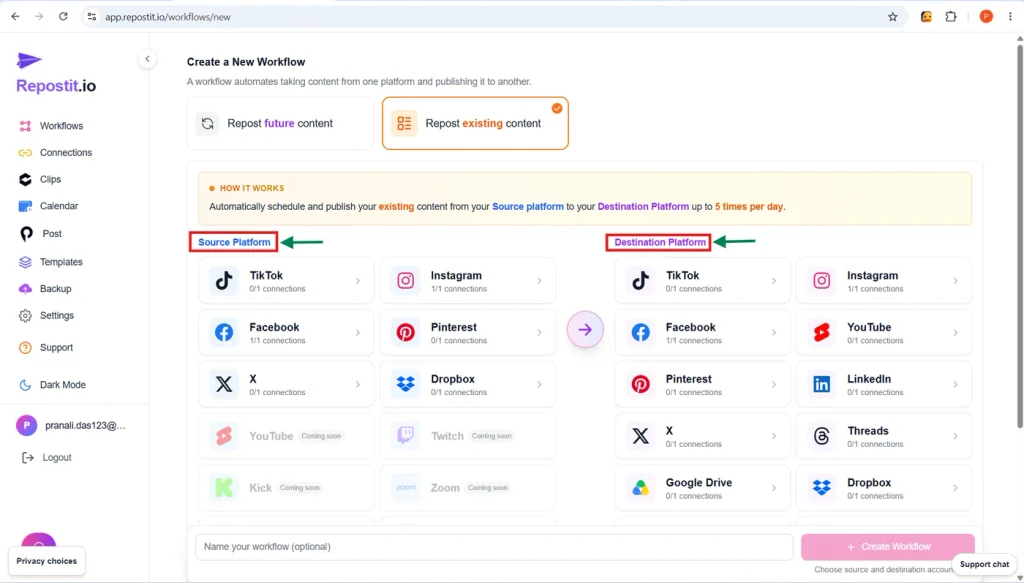
Every reposting workflow needs a source and a destination.
The source is where the original video exists.
The destination is where you want to republish it.
For my demonstration, I selected:
- Source: Facebook
- Destination: Instagram
- Content type: Reel
Repostit.io displays available platforms in separate Source Platform and Destination Platform sections.
Select the appropriate icons to begin configuring your workflow.
Step 3: Connect Your Facebook Page
Next, connect the Facebook Page containing your original videos.
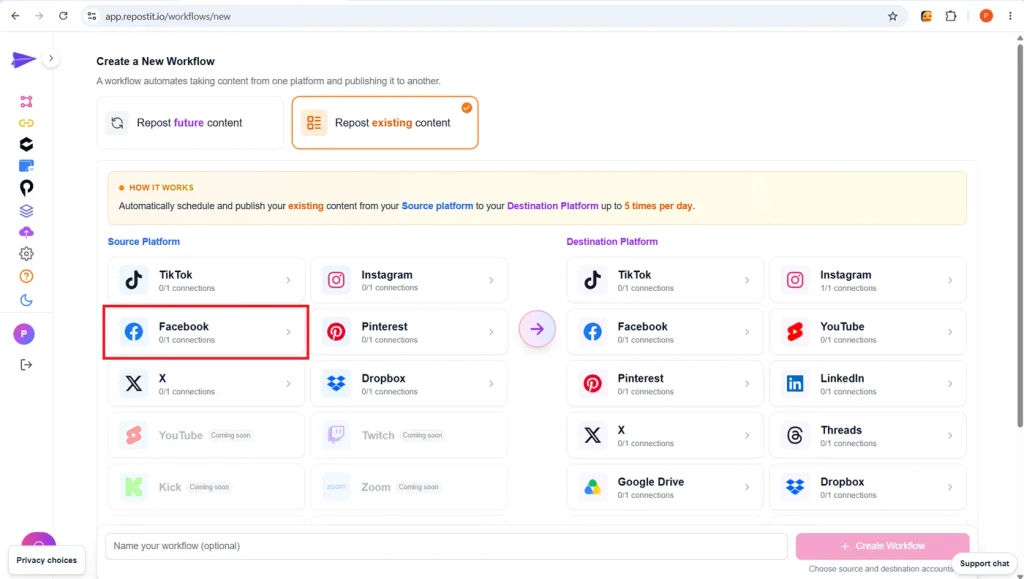
Click the Facebook icon under Source Platform.
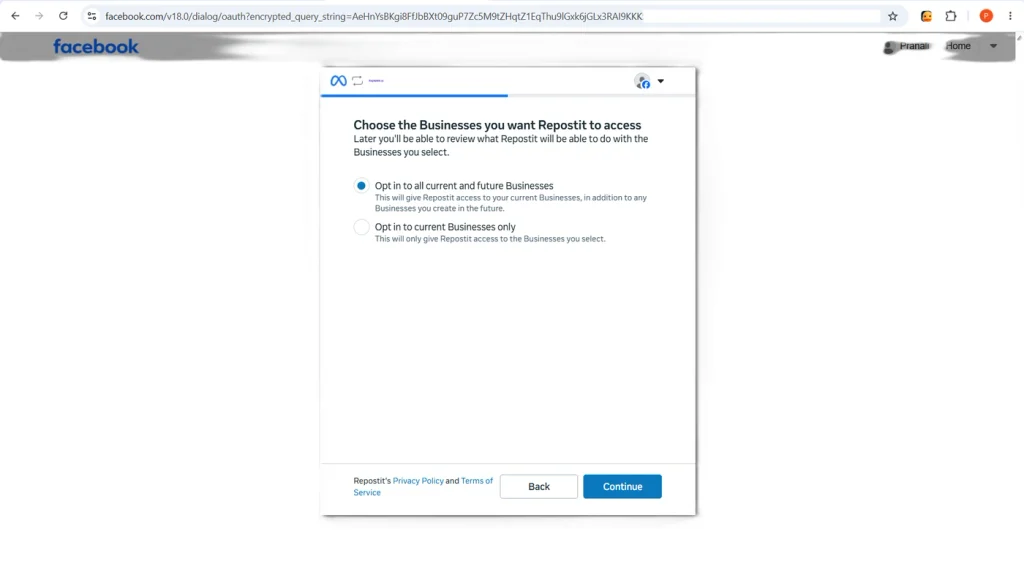
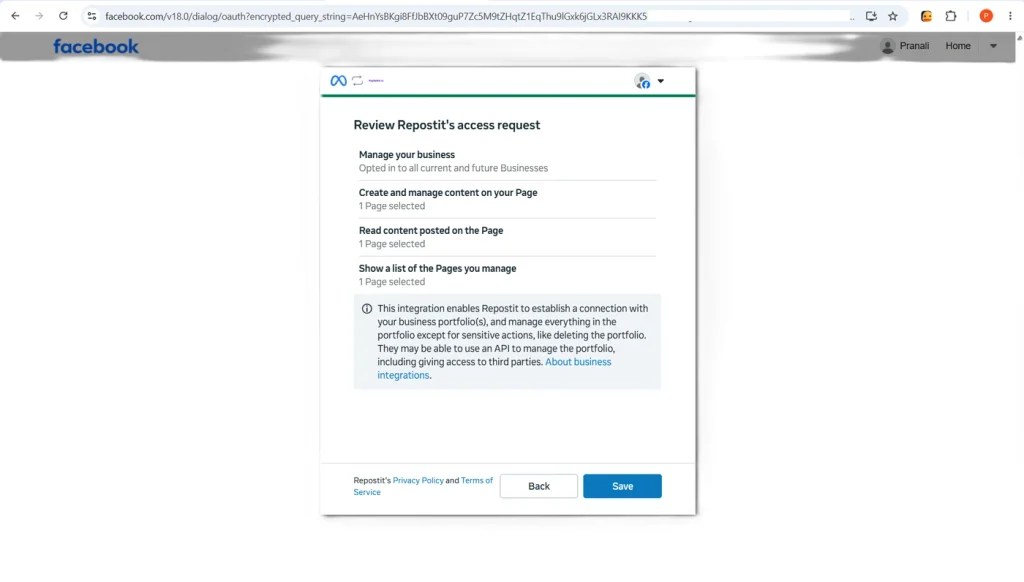
Facebook will open an authorization process.
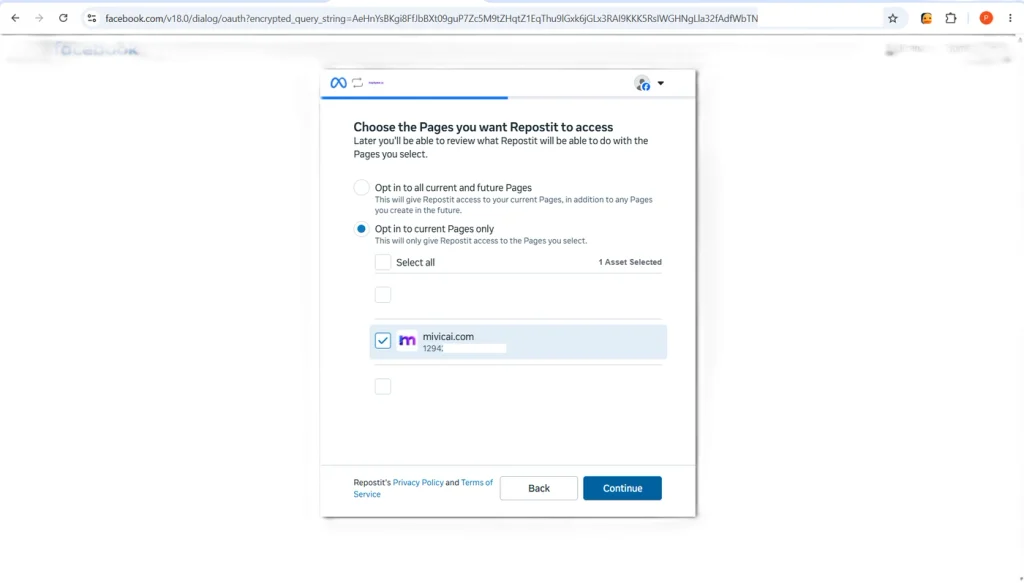
Depending on your account configuration, you may see options to grant access to all current and future Pages or only selected current Pages.
I recommend choosing only the Pages required for your workflow.
Follow these steps:
- Click Facebook under Source Platform.
- Complete the Facebook sign-in process if prompted.
- Choose the appropriate Page access option.
- Select your Facebook Page.
- Click Continue.
- Review any requested business access permissions.
- Continue to the permission review screen.
- Click Save to authorize the connection.
In my experiment, I selected my MiviCAI Facebook Page.
This approach helps keep account permissions limited to the Pages you actually want to use.
Step 4: Connect Instagram as the Destination
After connecting Facebook, return to the workflow builder.
Select Instagram under Destination Platform.
If your Instagram account is not already connected, complete its authorization process.
Important: Repostit.io requires a supported professional Instagram account, such as a Business or Creator account, for its Instagram integration.
A personal Instagram account may not support the required publishing permissions.
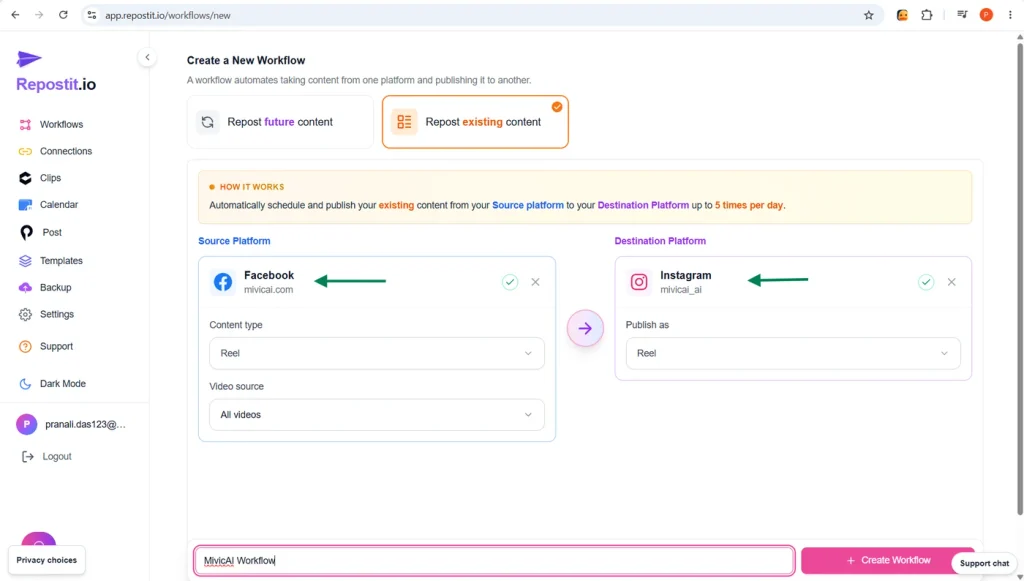
Once both accounts are connected, confirm that Facebook appears as the source and Instagram as the destination.
Step 5: Create Your Reposting Workflow
Now configure the content type.
In my demonstration, I selected Facebook Reels as the source content and Instagram Reels as the destination format.
Next, enter a workflow name.
For example:
MiviCAI – Facebook Reels to Instagram
Click Create Workflow.
Your workflow configuration is now ready for the next stage.
Repostit.io also supports Manual and Auto publishing modes.
For a new workflow, starting with Manual approval is a sensible approach because it lets you inspect the first repost before enabling unattended publishing.
Step 6: Configure the Publishing Schedule
One useful feature of Repostit.io is the ability to schedule existing content.
Rather than publishing an entire backlog immediately, you can spread videos across selected days and time slots.
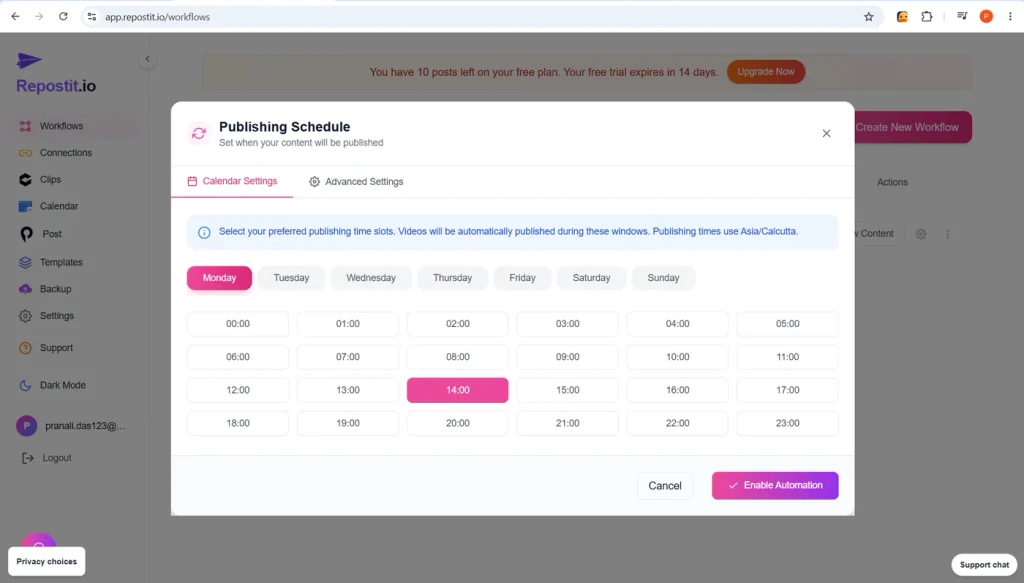
After creating the workflow, open the Publishing Schedule interface.
Choose the available scheduling options and select your preferred publishing times.
Before proceeding, verify the time zone used by the schedule.
Then click Enable Automation when you’re ready.
For creators with many older videos, scheduled reposting can help maintain a consistent publishing calendar.
Step 7: Check Your Workflow Status
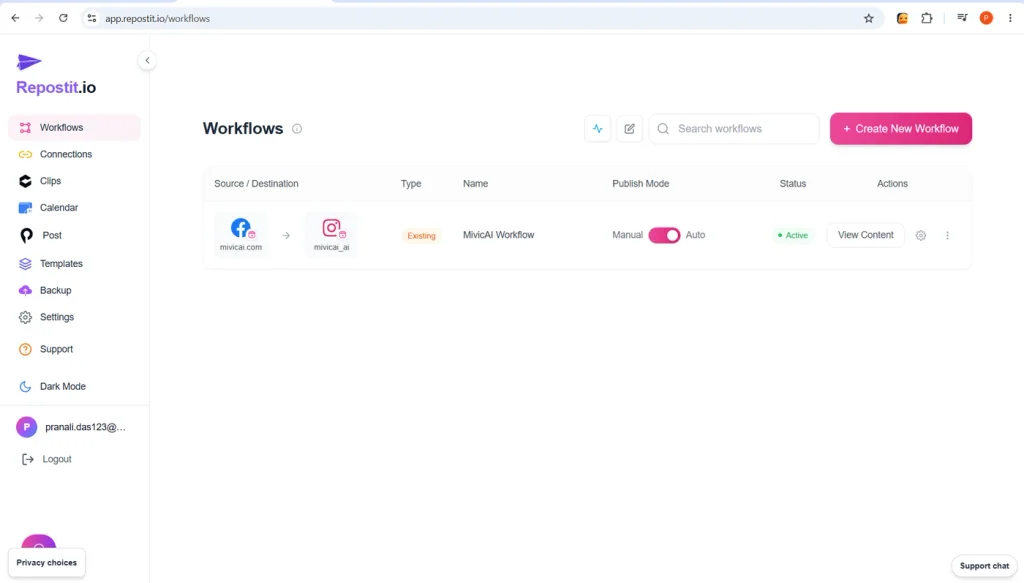
After enabling automation, return to the Workflows page.
You should see your configured workflow listed with its source, destination, publishing mode, and status.
In my tutorial, the workflow was displayed as active.
However, an active workflow status does not guarantee that every post has been successfully published.
Check the destination Instagram account to confirm that your first Reel appears correctly.
Verify the video, caption, audio, and account before relying on automatic publishing.
How to Create YouTube Shorts Using Repostit Clips
Now let’s explore the second feature I tested.
Repostit Clips can transform longer videos into short-form content suitable for platforms such as YouTube Shorts, Instagram Reels, and TikTok.
This is especially useful for creators who produce long tutorials, interviews, podcasts, and educational videos.
Instead of manually finding highlights and editing each short, you can use automatic clipping to generate several candidate videos.
Step 8: Open the Clips Feature
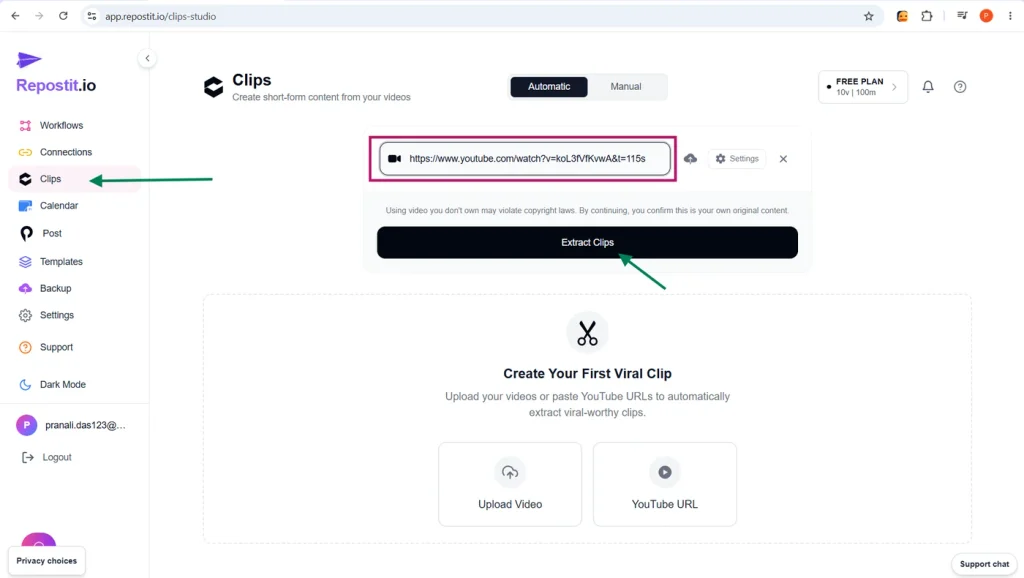
From the Repostit.io dashboard, click Clips in the left sidebar.
The interface provides two approaches:
Automatic: Repostit analyzes the video and selects potential highlights.
Manual: You choose or adjust the sections you want to turn into clips.
For this experiment, I used the automatic option.
Step 9: Paste Your YouTube Video Link
Next, add your source video.
Repostit Clips supports pasting a YouTube URL, and the tutorial interface also shows a video-upload option.
Follow these steps:
- Open Clips.
- Choose Automatic.
- Paste your YouTube video URL.
- Confirm the correct video.
- Click Extract Clips.
- Wait for processing.
Repostit analyzes the source and generates short video segments.
According to its documentation, Clips exports vertical videos at 1080 × 1920 resolution, suitable for 9:16 short-form content.
Step 10: Review Your Generated AI Shorts
Here comes the interesting part.
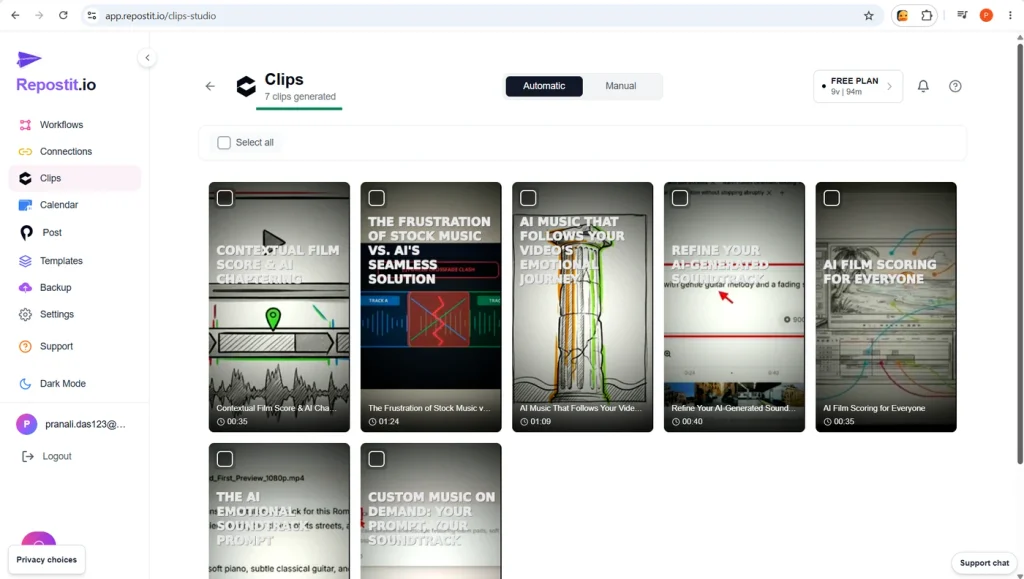
In my hands-on experiment, Repostit.io generated seven vertical clips in approximately two to three minutes.
The clips appeared as separate previews inside the Clips interface.
This demonstrated how one longer YouTube video could provide multiple pieces of short-form content.
However, the number of clips and processing time can vary depending on the source video and processing conditions.
Repostit also provides clip scores to help users identify promising highlights.
Before publishing, review every generated clip.
Check the opening hook, captions, framing, audio, and whether the selected segment makes sense on its own.
You can then download suitable clips or schedule them through the Clips Calendar.
One important limitation: Repostit says processed Clips remain available for 30 days. Download or schedule the clips you want to keep.
Does Repostit.io Remove Video Watermarks?
Yes, Repostit.io advertises watermark removal, particularly for TikTok videos.
When you download a TikTok video normally, it may contain a moving TikTok logo and username.
Repostit says its supported reposting workflows can produce copies without that watermark.
This helps make reposted videos look more appropriate for their destination platforms.
However, watermark removal does not guarantee higher views, stronger engagement, or improved recommendations.
Video quality, originality, relevance, and audience response remain important.
Also, watermark removal does not grant copyright permission to reuse someone else’s content.
Use videos that you own or are authorized to republish.
Can Repostit.io Automatically Republish Long YouTube Videos?
This is an important distinction.
Repostit.io supports publishing to YouTube Shorts, but its official supported-platform documentation currently lists YouTube as a reposting-workflow source that is still coming soon.
That means you should not assume you can use an existing YouTube channel as the source for an ordinary automatic reposting workflow.
However, Repostit Clips does support YouTube URLs.
You can paste a long YouTube video link into Clips, generate shorter vertical videos, and schedule or download the resulting clips.
Therefore, the supported YouTube URL-to-Clips workflow should not be confused with full-length YouTube-to-Facebook video mirroring.
Repostit.io and Copyrighted Music: What You Need to Know
Automatic reposting can create copyright problems when the original video contains music licensed only for one platform.
For example, a song selected from Instagram’s music library may be licensed for use on Instagram but not for redistribution on YouTube.
If you repost the video to another platform, the audio may be muted, restricted, or subject to a copyright claim.
This can happen even when the video itself is your original creation.
For creators using AI voiceovers, such as ElevenLabs narration, a safer workflow is to combine original narration with background music licensed for all intended platforms.
Always check the terms of your music license.
Repostit.io automates distribution, but it does not automatically grant cross-platform music rights.
Repostit.io Pricing in 2026
Repostit.io offers several subscription plans for automated reposting.
The official pricing page currently lists the following rates:
| Plan | Monthly billing | Effective monthly cost with annual billing | Main allowance |
|---|---|---|---|
| Basic | $5 | Not available | 10 video posts/month |
| Starter | $14 | $10 | Unlimited posts, 1 account per platform |
| Influencer | $29 | $20 | Unlimited posts, 5 accounts per platform |
| Agency | $149 | $99 | Unlimited posts, 30 accounts per platform |
Annual prices are billed upfront.
The platform also offers a 14-day free trial with no credit card required.
The trial includes:
- Up to 10 published posts.
- Up to three workflows.
- One account per platform.
Posts are counted per destination. For example, publishing one video to two destinations uses two posts.
Is Repostit Clips Free?
Yes. Repostit Clips has a separate free allowance.
According to the official pricing page, each account receives 10 videos or 100 minutes of processing, whichever limit is reached first.
The platform also lists separate Clips plans:
| Clips plan | Effective monthly cost with annual billing | Processing allowance |
|---|---|---|
| Free | $0 | 10 videos or 100 minutes |
| Basic | $8.25 | 300 minutes/month |
| Pro | $16.58 | 700 minutes/month |
| Premium | $41.58 | 1,500 minutes/month |
The paid Clips prices above are annual-billing equivalents.
This distinction matters: unlimited automated reposting does not mean unlimited AI clipping.
Check the latest pricing before subscribing.
Repostit.io Advantages and Limitations
Advantages
1. Saves publishing time
Repostit.io reduces the need to upload the same content separately to every supported platform.
2. Reuses existing videos
Older content can be republished through Existing workflows.
3. Supports scheduling
Creators can spread content across different days rather than publishing everything at once.
4. Generates short clips
Long-form videos can become multiple vertical clips using the Clips feature.
5. Supports cloud backups
Google Drive and Dropbox can be used as backup destinations for supported workflows.
6. Offers manual approval
Creators can review reposts before enabling automatic publishing.
Limitations
1. Source-platform support varies
Not every destination can also be used as a source.
2. AI-generated clips require review
Automatically selected highlights may need editing or additional context.
3. Copyright restrictions remain
Music licensed on one platform may not be licensed elsewhere.
4. Clips and reposting have separate limits
A reposting subscription does not automatically provide unlimited Clips processing.
5. Publishing failures can occur
Account permissions, media restrictions, and connection issues may interrupt automation.
Who Should Use Repostit.io?
Repostit.io can be useful for several types of content creators.
YouTubers: Generate short clips from longer videos and distribute them across supported platforms.
Faceless AI creators: Combine AI-generated videos with automated publishing workflows.
Bloggers: Repurpose educational videos into short social media content.
Freelancers: Reduce repetitive content distribution tasks.
Social media managers: Organize publishing workflows for supported client accounts.
Small businesses: Maintain a presence across several platforms without manually uploading every post.
For example, a creator producing AI tutorials could use one longer YouTube video to generate several short clips, review them, and schedule suitable versions across Instagram, Facebook, and YouTube Shorts.
This can make an existing content library more useful without requiring a completely new video for every platform.
Final Verdict: Is Repostit.io Worth Trying?
Based on my hands-on experiment, Repostit.io offers two useful capabilities: social media reposting workflows and AI-powered short-video generation.
I configured a Facebook Reels-to-Instagram workflow and explored its scheduling features.
I also tested the Clips tool, which generated seven vertical clips from a YouTube video in approximately two to three minutes.
These results show the platform’s potential for content repurposing. However, my experiment does not establish long-term publishing reliability or guarantee similar clipping results for every video.
For creators publishing regularly, Repostit.io is worth exploring as a way to reduce repetitive distribution work.
My recommendation is to begin with one source account, one destination, and a small test.
Verify the first repost, review your generated clips, and confirm the current subscription limits before expanding your workflow.
Try Repostit.io: https://repostit.io/
For more practical AI tutorials, creator-focused tools, and hands-on experiments, visit MiviCAI.com.
Frequently Asked Questions
Is Repostit.io free?
Repostit.io offers a 14-day reposting trial with limited posts and workflows. Its separate Clips feature provides a free allowance of 10 videos or 100 minutes.
Can Repostit.io automatically repost Facebook Reels to Instagram?
Yes. Facebook can be configured as a source and Instagram as a destination, subject to the necessary account permissions and supported content formats.
Can Repostit.io create Shorts from long YouTube videos?
Yes. Repostit Clips accepts YouTube video links and generates vertical short clips.
Does Repostit.io remove watermarks?
Repostit.io advertises watermark removal for supported reposting workflows, particularly TikTok watermark removal.
Can I schedule my older videos?
Yes. Existing workflows allow previously published videos to be republished according to available scheduling options.
Does Repostit.io support Google Drive and Dropbox?
Yes. Both services are supported as cloud backup destinations.
Is Repostit.io useful for AI-generated videos?
Yes. Creators can use it to distribute original AI-generated videos, provided they have the necessary rights to the visuals, audio, and other content.