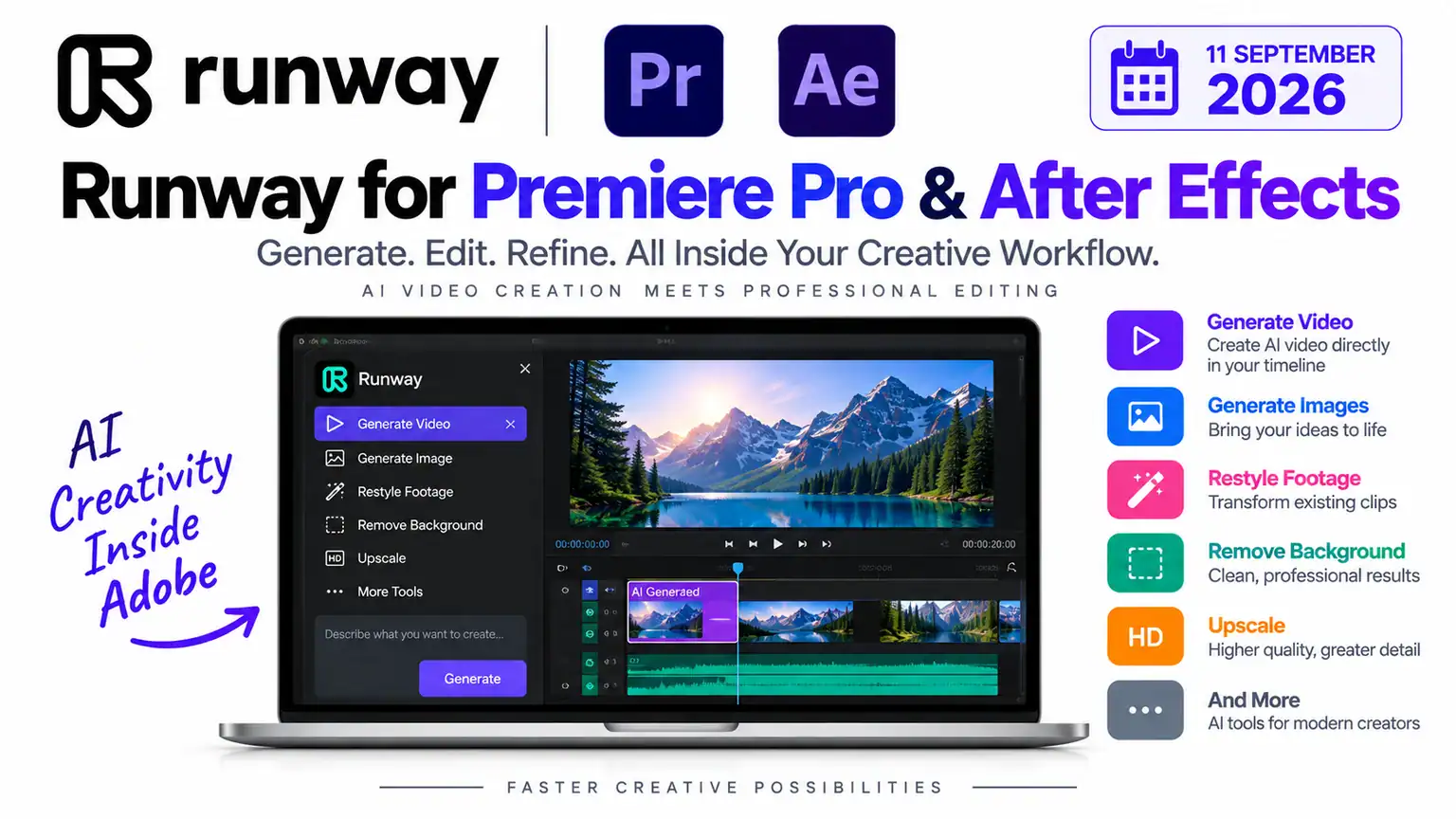
Runway has announced a major new integration that could significantly change how professional creators use generative AI during video production. The new Runway for Premiere Pro & After Effects integration brings Runway’s AI capabilities directly into Adobe Premiere Pro and After Effects, allowing creators to generate and modify visual assets without constantly switching between applications.
Announced on September 8, 2026, the new Runway Plugins introduce a dedicated Runway panel inside both Adobe applications. From this panel, creators can generate images and videos, restyle existing footage, upscale content and perform other AI-powered operations directly within their creative projects.
For YouTubers, filmmakers, motion designers, advertising professionals and social-media creators, Runway for Premiere Pro & After Effects addresses one of the biggest frustrations of AI-assisted video production: moving repeatedly between an editing application and a separate browser-based AI platform.
4
What Is Runway for Premiere Pro & After Effects?
Runway for Premiere Pro & After Effects is a new Adobe plugin that places a Runway interface directly inside Premiere Pro and After Effects.
Previously, an editor wanting to use Runway during a project might have needed to export a frame or clip, open Runway in a browser, upload the material, generate an AI result, download it and then import the result back into Premiere Pro or After Effects.
That workflow creates unnecessary interruptions.
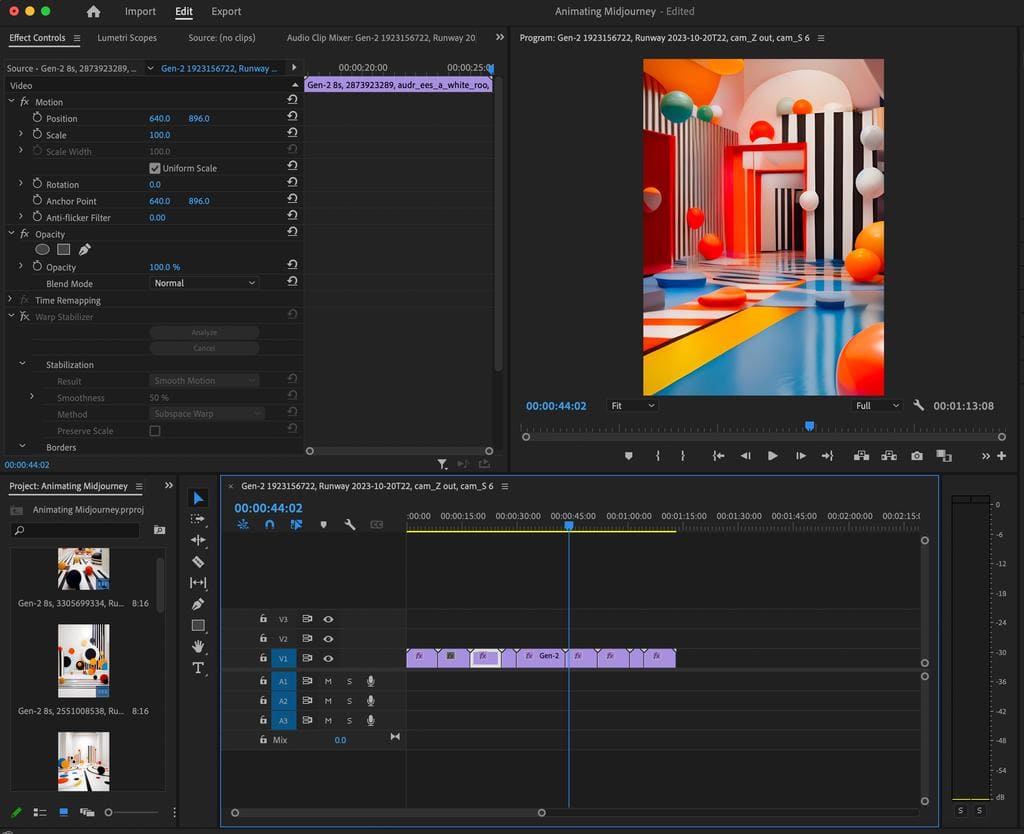
With Runway for Premiere Pro & After Effects, the Runway panel sits inside the Adobe application. Creators can write a prompt, generate an asset and then place the result directly into their timeline or composition. In Premiere Pro, generated results can be positioned at the playhead and trimmed like other media.
This means AI generation becomes part of the editing workflow rather than a completely separate stage.
Why This Integration Matters for Video Creators
The biggest advantage of Runway for Premiere Pro & After Effects is workflow efficiency.
Professional editors often work with dozens or hundreds of clips. Constantly leaving the editing environment to experiment with AI can slow down the creative process.
The new integration can reduce this friction in several ways.
1. Generate AI Video Inside Premiere Pro
Creators can use Runway’s generative models from within the Premiere Pro interface.
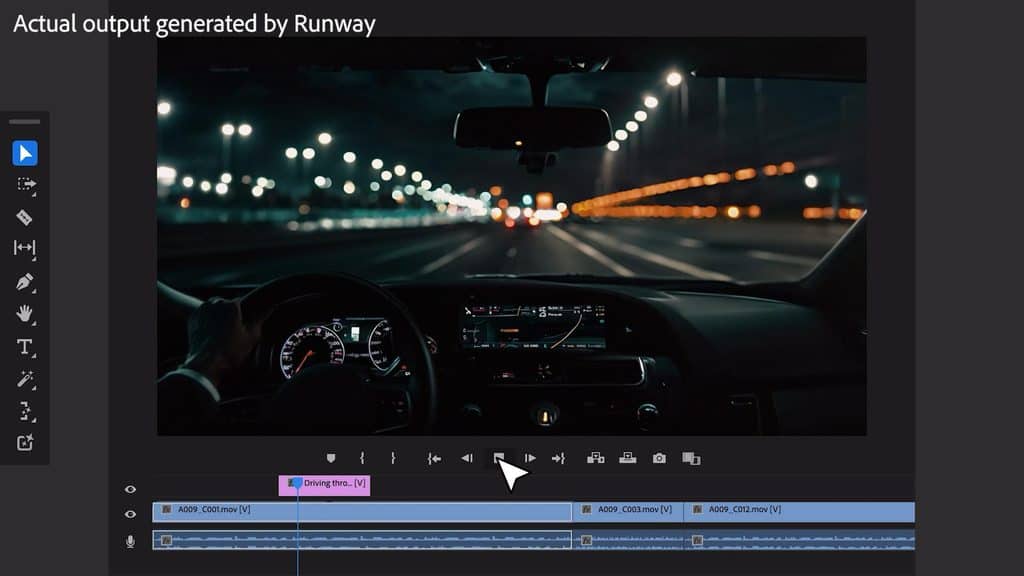
For example, imagine a YouTube video where the editor needs five seconds of atmospheric city footage between two scenes. Instead of searching through stock libraries or opening another application, the creator can use Runway directly from Premiere Pro to generate suitable footage.
The generated result can then be inserted into the timeline and edited immediately.
2. Generate Images for Creative Projects
The integration isn’t limited to video generation.
Runway says its plugin can generate images as well. This could be useful for thumbnails, concept frames, storyboards, visual references and backgrounds.
A creator working on a documentary, advertisement or YouTube video could generate supporting visuals without leaving Premiere Pro or After Effects.
3. Restyle Existing Footage
One of the more interesting capabilities is the ability to work with footage that already exists in the timeline.
Runway’s Edit Studio can work on a selected clip and restyle its anchor frames. According to Runway, its Aleph 2 technology can then re-render the full clip while maintaining the source clip’s duration.
This could be useful for experimenting with different visual styles without completely rebuilding a sequence.
4. Upscaling and Background Removal
The Runway panel also provides access to additional processing features, including upscaling, background removal and HDR conversion.
Instead of exporting media for separate processing and then importing it again, creators can access these functions from selected clips or assets inside the workflow.
Runway for Premiere Pro & After Effects: Step-by-Step
Getting started is relatively straightforward.
Step 1: Install Runway Plugins
Download the Runway Plugins for your computer. Runway says the plugins are available for both macOS and Windows.
Step 2: Open Premiere Pro or After Effects
Launch your Adobe application and open an existing project or create a new project.
For video editing, use Premiere Pro. For motion graphics, compositing and visual effects, use After Effects.
Step 3: Open the Runway Panel
Locate and open the Runway plugin panel inside the Adobe application.
The panel provides access to Runway’s AI generation and editing capabilities without requiring you to open a separate browser window.
Step 4: Sign In to Your Runway Account
Sign in using your existing Runway account.
Runway says generations made through the plugin use the user’s existing Runway plan and credits. A workspace switcher is also available for users working across teams.
Step 5: Select Your Workflow
Depending on the project, you can use the Runway panel to generate images or videos, edit existing footage, restyle clips, remove backgrounds, upscale content or perform other supported operations.
Step 6: Enter Your Prompt
Write a description of what you want to generate.
For example:
“Cinematic aerial shot of a futuristic city at sunset, realistic lighting, dramatic atmosphere.”
The exact options and available models can vary depending on your Runway plan and the tools available at the time.
Step 7: Generate the Asset
Start the generation from the Runway panel.
The result appears within the Runway feed rather than requiring you to leave the Adobe application.
Step 8: Place the Result Into Your Project
Once you are happy with the generated asset, place it into your Premiere Pro sequence or After Effects composition.
In Premiere Pro, Runway says generated results can land at the current playhead position, where they can be trimmed and edited like other media.
Step 9: Continue Editing
Now you can continue with your normal Adobe workflow—adding transitions, color correction, captions, effects, music and other elements.
This is the key advantage of Runway for Premiere Pro & After Effects: AI becomes part of the timeline rather than interrupting the timeline.
Runway Subscription Plans and Credits
The Runway plugin itself is free to download, but AI generation through the plugin requires a paid Runway plan and consumes the credits associated with that plan.
Runway’s current plan structure includes Standard, Pro, Max, Team and Enterprise options, while the company is transitioning legacy Unlimited subscriptions to Max.
Current credit allocations include:
| Runway Plan | Monthly Credits | Best For |
|---|---|---|
| Free | 125 one-time credits | Trying Runway |
| Standard | 625 | Light AI creation |
| Pro | 2,250 | Regular creators |
| Max | 9,500 | High-volume production |
| Team | 6,900 per seat, pooled | Creative teams |
Runway’s Pro plan also includes 500GB of asset storage, Custom Voices, Text to Speech and access to its full range of AI image and video models.
The Max plan is designed for high-volume creators and provides 9,500 monthly credits, full model access and the ability to roll over one month of unused credits.
Runway also says that Free-plan videos carry a Runway watermark, while upgrading to Standard or above enables watermark-free generation.
What About Adobe Premiere Pro Pricing?
Creators also need an Adobe subscription because the Runway plugin operates inside Premiere Pro or After Effects.
In the U.S., Adobe currently lists Premiere at US$22.99/month on an annual plan billed monthly. The plan includes 25 monthly generative credits. Adobe’s Creative Cloud Pro plan includes Premiere, After Effects, Photoshop and more than 20 other applications, along with 4,000 monthly generative credits. Adobe currently lists Creative Cloud Pro at US$34.99/month for the first three months for eligible new subscribers, before the regular US$69.99/month price.
Therefore, a professional creator using both Adobe and Runway should consider both subscription costs and AI credit consumption when calculating the total production budget.
How Runway for Premiere Pro & After Effects Can Help YouTube Creators
For YouTubers, the integration could be particularly useful.
A typical YouTube production may require:
- AI-generated B-roll
- Background replacement
- Intro and outro visuals
- Cinematic establishing shots
- Thumbnail concepts
- Motion graphics
- Visual effects
- Image-to-video experiments
- Upscaling
- Style experimentation
Previously, many of these tasks could require moving between several websites and applications.
With Runway for Premiere Pro & After Effects, creators can perform more of these AI-assisted tasks while staying inside their existing editing environment.
For a creator producing several videos every week, eliminating repeated downloads, uploads and imports could save considerable time.
How It Could Help Professional Editors
The benefits extend beyond YouTube.
Film editors can experiment with additional visual material without leaving their editing application.
Motion designers can use Runway alongside After Effects when developing visual concepts.
Advertising agencies can rapidly test multiple creative directions.
Social-media teams can generate and modify assets while maintaining a central editing workflow.
Freelancers can potentially reduce the number of applications they need to switch between during client projects.
The most important benefit is not simply AI generation. It is the combination of AI generation and professional timeline-based editing.
Runway for Premiere Pro & After Effects vs. Traditional AI Workflow
The difference can be summarized simply:
Traditional workflow:
AI website → Upload → Generate → Download → Import → Edit → Export → Repeat
New workflow:
Premiere Pro/After Effects → Runway panel → Generate/Edit → Place into project → Continue editing
That shorter workflow could make AI experimentation much more practical for professional production.
What Creators Should Know About Credits
AI video generation can consume credits quickly, particularly when generating multiple versions.
Runway currently lists Gen-4.5 at 12 credits per second, while some other models have different rates. For example, Runway lists Aleph 2 at 28 credits per second and Gen-4 Turbo at 5 credits per second.
Therefore, creators should avoid assuming that a monthly credit allocation represents a fixed number of videos. The actual number depends on the model, duration, resolution and other generation settings.
Runway also allows paid users to purchase additional credits when necessary.
Final Verdict
Runway for Premiere Pro & After Effects is an important step toward making generative AI a natural part of professional video editing.
Instead of treating AI generation as a separate browser-based process, Runway is bringing its capabilities directly into two of the world’s most widely used professional creative applications.
For YouTubers, filmmakers, motion designers and agencies, the biggest advantage may be less context switching and faster experimentation.
The ability to generate video and images, restyle existing footage, upscale content and perform other AI operations directly from the Adobe environment could make the creative process considerably more streamlined.
For creators already using both Runway and Adobe, Runway for Premiere Pro & After Effects could become one of the most useful integrations to watch in AI-powered video production.
FAQ
Q: What is Runway for Premiere Pro & After Effects?
A: It’s a new Adobe plugin that places a Runway panel directly inside Premiere Pro and After Effects, letting creators generate images and video, restyle footage, upscale content, and remove backgrounds without leaving the editing application.
Q: When was it announced?
A: Runway announced the integration on September 8, 2026.
Q: Do I need a paid Runway subscription to use it?
A: The plugin itself is free to download, but generating AI content through it requires a paid Runway plan (Standard, Pro, Max, Team, or Enterprise) and consumes that plan’s credits. The Free plan offers 125 one-time credits but adds a watermark to videos.
Q: Is the plugin available for both Mac and Windows?
A: Yes, Runway says the plugins support both macOS and Windows.
Q: Can I edit footage that’s already in my timeline?
A: Yes. Using Runway’s Edit Studio, you can restyle a selected clip’s anchor frames, and Aleph 2 technology re-renders the full clip while keeping the original duration.
Q: How much do Runway credits cost per generation?
A: It depends on the model. Gen-4.5 costs 12 credits per second, Aleph 2 costs 28 credits per second, and Gen-4 Turbo costs 5 credits per second — so a monthly credit allotment won’t stretch to a fixed number of videos.
Q: Do I also need an Adobe subscription?
A: Yes, since the plugin runs inside Premiere Pro or After Effects. Adobe’s standalone Premiere Pro plan runs about $22.99/month (with 25 generative credits included), while Creative Cloud Pro (which bundles 20+ apps including Premiere and After Effects) runs $34.99/month for the first three months, then $69.99/month, and includes 4,000 monthly generative credits.
Q: Where do generated assets land in my project?
A: In Premiere Pro, generated results appear in the Runway feed first, and once approved, can be placed at the current playhead position and trimmed like any other media clip.
Q: Who benefits most from this integration?
A: YouTubers, filmmakers, motion designers, advertising professionals, and social-media teams — anyone who previously had to shuttle files between a browser-based AI tool and their editing software.
Q: What kinds of tasks can it handle besides generating new footage?
A: Upscaling, background removal, HDR conversion, image generation for thumbnails or storyboards, and footage restyling — all from within the Adobe panel.
Official Source: Runway Company News — Introducing Runway for Premiere Pro & After Effects
Adobe Premiere Pro Plans: Adobe Premiere Pro Plans
Runway Plans & Credits: Runway Help Center — Credits